
Solve Shark Robot Vacuum Not Connecting to Your Home Wi-Fi
This post contains affiliate links. As an Amazon Associate, we earn from qualifying purchases.
A Shark robot vacuum not connecting to Wi-Fi is almost always a network configuration problem, not a broken vacuum. The fix requires three specific matches: your phone must be on a 2.4GHz Wi-Fi band, your router must not have isolation settings enabled, and the robot needs stable power from its dock during the entire setup handshake.
Forget the 5GHz band. Shark robots only speak 2.4GHz. If your router merges both bands under one name, the robot gets confused and the pairing fails every time. The connection process is a delicate exchange of encrypted keys between your phone, the robot, and your router—if any one of those three is on the wrong frequency or has a blocking setting, you get a red light and an offline status.
What follows is a diagnostic path. We start with the single most common failure point, move through router settings most guides skip, and land on the hardware resets that clear corrupted tokens. By the end, you’ll know whether the problem is your network, your app, or the robot itself.
Key Takeaways
- Shark robot vacuums connect only to 2.4GHz Wi-Fi networks. A dual-band router with a single network name (band steering) is the #1 cause of failure.
- Router settings like Wi-Fi isolation (AP isolation) and MAC filtering will block the robot from communicating with your phone and the internet, even with the correct password.
- A stable power supply is critical. Pair the robot while it’s seated on its charging dock; dirty contacts cause voltage dips that stall the setup process mid-handshake.
- The SharkClean app acts as a bridge. If it’s outdated or your phone has a VPN active, the credential handoff between your Wi-Fi and the robot breaks.
- A full factory reset is your last step, not your first. It erases the robot’s old network configuration and cloud token, forcing a clean re-pairing sequence.
Why 2.4GHz is Non-Negotiable
Your router’s 5GHz band is faster. The Shark robot doesn’t care. Its internal Wi-Fi module is a simpler, longer-range chip designed for the 2.4GHz frequency. This band travels farther through walls and floors, which a roaming vacuum needs. The 5GHz band is for streaming video in one room.
The problem is modern routers. To simplify things for users, many broadcast both the 2.4GHz and 5GHz networks under the same name—a feature called band steering. Your phone, seeking the best signal, usually jumps on the 5GHz band. When you start the SharkClean app setup, your phone is on 5GHz but trying to give 2.4GHz credentials to the robot. The handshake never completes.
Shark robot vacuums are only compatible with 2.4GHz Wi-Fi bands because they offer a longer range and better wall penetration than 5GHz bands, which is essential for a moving cleaning device.
You have two proven paths here. First, log into your router’s admin settings and temporarily disable the 5GHz broadcast. This forces your phone onto the 2.4GHz network. Complete the robot setup, then re-enable 5GHz. The robot will stay connected.
Second, split your networks. Give your 2.4GHz and 5GHz bands different names (like “HomeWiFi_2.4” and “HomeWiFi_5”). Connect your phone to the 2.4GHz network manually, then run the app setup. This is a permanent fix that prevents future issues with other smart devices.
The blinking blue or white Wi-Fi light on the robot means it’s in setup mode, broadcasting its own temporary network. If that light goes solid red or the pairing times out, the band mismatch is the first thing to rule out.
The Router Settings Nobody Checks
Getting the band right is half the battle. The other half happens inside your router’s advanced settings. These features exist for security or network management, but they treat your new robot vacuum like an untrusted intruder.
| Router Setting | What It Does | How It Breaks the Connection |
|---|---|---|
| Wi-Fi Isolation (AP/Client Isolation) | Prevents devices on the same Wi-Fi network from communicating directly with each other. | The SharkClean app on your phone can’t “talk” to the robot to complete the initial setup handshake. |
| MAC Filtering | Only allows devices with pre-approved MAC addresses (a unique hardware ID) to join the network. | The robot’s MAC address is blocked until you add it to the router’s “allowed” list. |
| VPN/Proxy Active on Phone | Routes your phone’s internet traffic through an encrypted tunnel or separate server. | Interferes with the local network discovery the app uses to find the robot. |
Wi-Fi isolation is the stealth culprit. It’s often enabled on guest networks or by default on some mesh systems. The robot and your phone need to exchange small data packets directly during setup. If isolation is on, those packets get dropped. The app will spin forever at “Connecting to robot.”
MAC filtering is less common but just as effective at blocking you. You’ll need to find the robot’s MAC address (usually on a label on the bottom or in the manual) and add it to your router’s whitelist. Turn filtering off temporarily to test, then re-enable it after the robot is online.
Where this goes sideways: Leaving a VPN active on your phone during setup. The app’s local discovery protocol gets routed out to the internet and back, missing the robot entirely. Turn the VPN off, force quit the app, and try again.
Step-by-Step Connection Fix (In Order)
Don’t jump to a factory reset. Follow this sequence. Each step addresses a specific layer of the problem, from network to app to hardware. Skipping ahead wastes time and can clear your robot’s map for no reason.
- Power Cycle the Triangle. Turn off the robot. Unplug your router and modem for 60 seconds. Plug the modem back in, wait for it to fully boot, then plug the router in. Power the robot back on. This clears temporary glitches in all three devices.
- Prepare Your Phone. Ensure your phone is connected to the correct 2.4GHz Wi-Fi network. Disable any VPN or proxy. Fully close the SharkClean app (swipe it away from your recent apps).
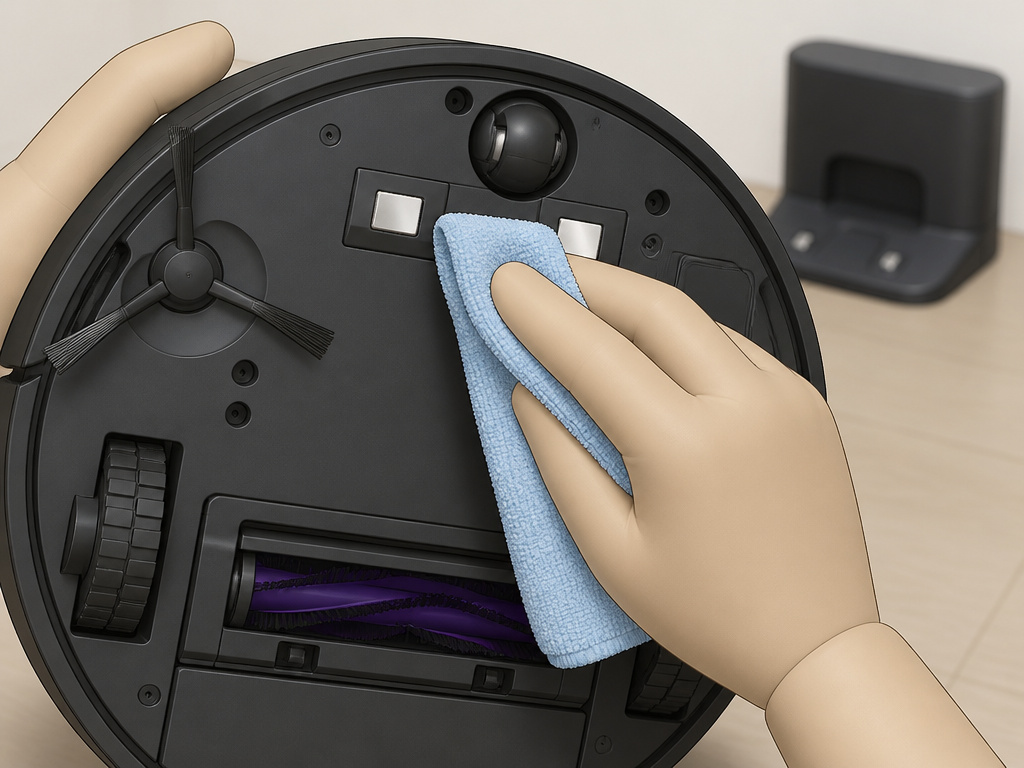
- Clean the Robot’s Charging Contacts. Wipe the metal pads on the bottom of the robot and the corresponding pins on the dock with a dry microfiber cloth. Seat the robot firmly on the dock. Unstable power during setup corrupts the network profile write.
- Re-run the App Setup. Open the SharkClean app. If your robot shows as offline, remove it from the app’s device list and choose “Add a Robot.” Follow the prompts. Keep the robot on the dock and your phone within 10 feet of the router.
- Verify Router Settings. If step 4 fails, log into your router’s admin page (often 192.168.1.1) and check for Wi-Fi isolation or MAC filtering. Disable them temporarily, then retry the app setup.
If the app stalls at “Connecting to Wi-Fi,” the robot is receiving the network name and password but can’t get a local IP address from your router. That’s almost always a band or isolation issue.
When to Factory Reset Your Shark Robot

A factory reset is the nuclear option. It wipes the robot’s stored Wi-Fi credentials, cloud token, and, on mapping models, its entire floor plan. Use it only when the basic steps fail and you’ve confirmed your network is configured correctly.
The reset clears a provisioning token mismatch. This happens if you’ve changed your Wi-Fi password, got a new router, or tried to connect the robot to a different account. The robot holds an old, invalid token and rejects new connection attempts, showing “Offline” stubbornly.
The process varies by model but typically involves holding down a combination of buttons (like DOCK and CLEAN) for 10-15 seconds until you hear a tone or see lights flash. Consult your specific manual. After the reset, the robot will behave like it’s brand new—you must go through the full app setup again from scratch.
Common mistake: Resetting the robot before fixing the router. If your network still has isolation enabled or is on the 5GHz band, the robot will fail to connect again immediately after the reset, putting you back at square one.
The Phone Hotspot Workaround
Can’t change your main router’s settings? Use your phone’s mobile hotspot as a test bed. Most smartphones can broadcast a 2.4GHz hotspot.
Turn on your phone’s hotspot. Connect another phone or tablet (with the SharkClean app installed) to that hotspot. Use that second device to set up the robot. This bypasses your home router’s complex settings entirely. If the robot connects instantly to the hotspot, you’ve proven the problem is 100% with your home network configuration.
You can then use the SharkClean app’s “Change Wi-Fi” function to migrate the robot from your hotspot to your home network, often with more success.
Hardware Checks: It’s Not Always Software
Sometimes the signal is physically blocked. A robot vacuum lives on the floor, which is a terrible place for Wi-Fi. Signals get absorbed by concrete, reflected by metal, and drowned out by interference.
- Large Appliances: Don’t place the charging dock directly behind or beside a refrigerator, oven, or metal filing cabinet. These act as Faraday cages.
- Other 2.4GHz Devices: Baby monitors, wireless phones, microwave ovens, and even some LED light bulbs blast noise on the 2.4GHz spectrum. Turn them off during setup.
- Distance and Walls: The initial setup is critical. Place the dock in a central, open area within clear sight of your router. Once paired, the robot can roam further and reconnect automatically.
If the robot connects but randomly drops offline when cleaning a back bedroom, you have a coverage issue. Consider a Wi-Fi extender that broadcasts the same network name (SSID) as your main router, ensuring seamless roaming.
Frequently Asked Questions
Why does my Shark robot vacuum keep disconnecting from Wi-Fi?
Random disconnections are usually a weak signal or interference. The robot roams into a dead zone where the 2.4GHz signal is too weak to maintain a link. It should reconnect when it returns to a better area. If it doesn’t, your router’s coverage is insufficient for your home’s layout. A mesh system or a well-placed extender fixes this.
Can I connect my Shark vacuum to a 5GHz network?
No. The hardware does not support it. You must use a 2.4GHz network. This is a limitation of the Wi-Fi chip Shark uses to balance cost, range, and power consumption.
What does a solid red Wi-Fi light mean on my Shark robot?
Solid red light indicates the robot is powered on but is not connected to Wi-Fi. It either failed its last connection attempt or has never been set up. Put it into setup mode (usually by holding the DOCK button) and try the app pairing process again.
How do I reconnect my Shark vacuum after changing my router or password?
You must update the credentials stored on the robot. Open the SharkClean app, select your robot, and go to Settings. Look for “Network” or “Change Wi-Fi” and follow the prompts. This is easier than a full factory reset but does require the robot to be online to initiate—if it’s totally offline, you’ll need to reset it.
Will a factory reset delete my robot’s map?
On models with smart mapping, like the Shark AI Robot or Shark Matrix, yes. A factory reset returns the robot to its out-of-box state, erasing all saved maps, schedules, and no-go zones. Only use it as a last resort for connection issues.
The Bottom Line
A Shark robot vacuum not connecting to Wi-Fi is a puzzle with a limited set of pieces. Start with the 2.4GHz requirement and work backward through your router’s settings. The fix is almost always in your network, not in the vacuum.
For most homes, the solution is splitting the dual-band network names and ensuring the robot gets clean power from its dock during setup. That covers ninety percent of cases. For the stubborn ten percent, the phone hotspot test tells you if the problem is your network or the robot itself. Only then should you reach for the factory reset button.