
Fix a Roomba Not Vacuuming With This Essential 3-Step Check
This post contains affiliate links. As an Amazon Associate, we earn from qualifying purchases.
A Roomba not vacuuming is almost always a maintenance alert, not a hardware failure. The fix lives in a three-step sequence: empty and check the bin assembly, completely clean the brushes and extractors, then perform a soft or factory reset. Skip any step and the problem returns within a week.
That sequence works because Roomba’s suction depends on clear airflow. A clogged filter or a hair-wrapped brush stalls the system, and the robot’s software throws an error to protect the motor. Newer models like the s9 or j series report this with specific codes; older ones just stop picking up debris.
What follows is the diagnostic flow that isolates the cause, the model-specific errors that point to it, and the edge cases, like thick rugs or dry air, that break the standard fix.
Key Takeaways
- Suction fails on airflow. A full bin, a clogged filter, or tangled brushes block the vacuum path. Clean these three points in order every time.
- Error codes are specific. Error 2 means clean the brushes. Error 26 on an s9 points to a motor fault; on a 700 series, it means clean the filter.
- Pet hair needs a “conditioning” cycle. With heavy shedders, empty the bin the moment the status light flashes red twice to prevent re-depositing hair.
- Physical limits matter. No Roomba can reliably cross a transition taller than ⅝ inch (1.6 cm), and high-pile rugs can stall the main brush.
- The factory reset is a last resort. It erases maps and settings. Use it only when the robot is lost or unresponsive after all physical cleaning.
The 3-Step Diagnostic Flow (Check, Clean, Reset)
Start here before you disassemble anything or call support. Ninety percent of “no suction” cases are resolved by this checklist, performed in order.
- Check the Bin and Filter. Remove the bin and empty it over a trash can. Now, remove the filter and tap it firmly against the inside of the trash can. Look for a fine grey dust cake. If you see one, the filter is done, it needs replacement, not cleaning. A clogged filter triggers Error 26 on 700-series models and causes weak suction on all others.
- Clean the Brushes and Extractors. Remove the main brush cage. Pull out the two Multi-Surface Rubber Brushes. Cut away any hair or threads wound around the axles and the plastic bearing caps at each end. Use a tool to clear the brush cage’s intake slots. For a Roomba j series or newer, also pop out the front caster wheel and its holder to remove hidden hair.
- Reset the Robot. A soft reset clears the error state. Turn the Roomba over, find the power button, and hold it for 10 seconds until the lights cycle. For a persistent navigation issue (like a Roomba i4 getting lost), a factory reset, holding the Clean, Spot, and Dock buttons for 10 seconds, wipes the map and can restore normal operation.
Common mistake: Only emptying the bin. The filter clogs with fine dust long before the bin looks full, and hair wraps deep inside the brush axles where you can’t see it. Skipping the full clean guarantees the problem returns in two or three runs.
Beyond the Basics: Specific Failures by Model
The three-step flow is universal, but the symptoms and error codes vary. This table tells you what to prioritize based on what your Roomba is saying.
| Model Series | Common Error | What It Means | First Action |
|---|---|---|---|
| e, i, j series | Error 2 | Brushes/extractors are stuck or tangled. | Remove and clean both main brushes and the edge brush. |
| 900 series | Error 2 | Debris extractors are obstructed. | Clear the main brush cage and check for thread wrapped deep in the axles. |
| 500, 600, 700 series | Error 2 | Brush cage is jammed. | Open the brush cage, remove brushes, and clear all intake ports. |
| s Series (s9) | Error 26 | Vacuum or blower motor issue detected. | Complete the 3-step clean. If error persists, motor may need service. |
| 100/1000, 200/2000, Plus/Max 700 | Error 26 | Insufficient airflow detected. | Empty bin and replace the filter. This is almost always a clogged filter. |
Error 26 is the best example of why model matters. On an expensive s9, it’s a motor alert. On an older 700-series model, it’s a simple maintenance reminder. Misreading that sends you down a wrong and expensive path.
When Standard Cleaning Isn’t Enough: The Edge Cases
Some environments break the normal rules. Your cleaning routine needs to adapt.
- Homes with Heavy Shedders. iRobot’s own guidance talks about a “floor conditioning process.” This means running the Roomba frequently and emptying the bin the instant the status light flashes red twice. If you wait for the job to finish, the full bin re-deposits hair. Use the app setting to “Finish cleaning when bin is full.”
- Thick Carpet or High-Pile Rugs. These can physically slow the brushes to a stop, causing Error 2. The s9 is particularly vulnerable because its cleaning head sits lower. The fix is to use a higher-power cleaning mode (like “Custom Clean” on an s9) or to block off those areas in the app.
- Dry, Static-Prone Air. In low-humidity climates, the 900 series can struggle with pet hair on carpet, static cling holds it down. The solution isn’t more suction; it’s a humidifier or an anti-static spray for carpets (never sprayed on the robot).
- Physical Transitions. All Roombas have a maximum threshold height of ⅝ inch (1.6 cm). If your robot cleans a room but can’t get back, check that transition. It might cross one way with a running start but fail on the return.
Where this goes sideways: Assuming a physical limit is a mechanical fault. If your Roomba consistently fails to cross a doorway transition, measure it. A transition over 1.6 cm is a permanent barrier, not a fixable problem.
The One Reset You Need to Know (And When to Avoid It)
Resets are powerful, but they are not all the same. Using the wrong one can create more work.
- Soft Reset (Power Cycle): Hold the power button for 10 seconds. Use this after any physical cleaning to clear error codes and reboot the software. It does not delete maps or settings.
- Factory Reset (Hard Reset): Hold the Clean, Spot, and Dock buttons together for about 10 seconds until you hear a tone. This wipes everything, maps, Wi-Fi, schedules. Only use this as a last resort for a robot that is chronically lost, won’t connect to the app, or is stuck in an unresponsive state after a soft reset.
The YouTube transcript for the Roomba i4 shows this perfectly. The owner’s robot had mapped the home but then “just got lost and it never could recreate what it was doing on the map.” A factory reset was the correct final step after confirming the hardware was clean.
Tools and Replacement Parts You Should Have on Hand
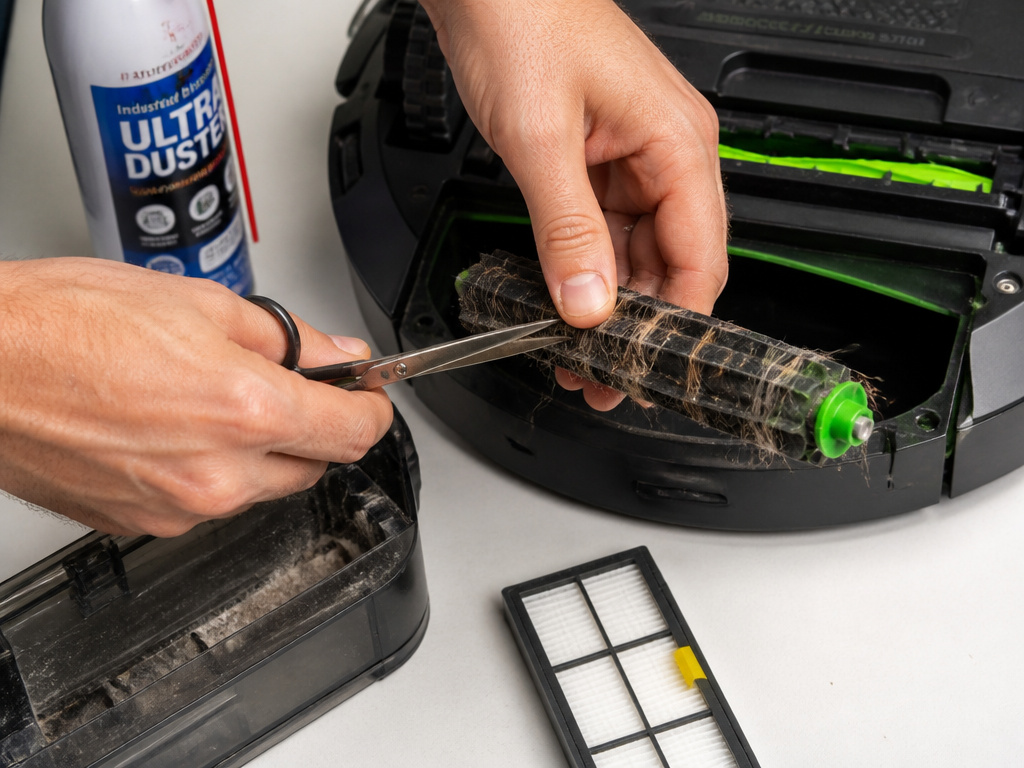
You can’t maintain a robot vacuum with just your hands. These are the specific items that make the job effective.
- A Seam Ripper or Small Scissors: For slicing through hair wrapped tightly around brush axles. A knife is too dangerous.
- A Replacement Filter: OEM filters from iRobot are best. After about three months of use, tapping no longer restores airflow. A fresh filter is a consumable, not a luxury.
- A Can of Compressed Air: For blowing dust out of the filter compartment, sensors, and wheel wells without disassembly.
- A Small Brush: A clean, dry paintbrush or makeup brush is ideal for dusting cliff sensors and the charging contacts.
- Replacement Multi-Surface Brushes: These wear out. If the rubber fins are cracked or smooth, they won’t agitate debris. Keep a spare set.
Relying on generic “cleaning tools” means you’ll miss the hair in the j series front caster wheel or the dust in the s9’s airflow sensor. The right tool turns a 20-minute struggle into a 2-minute routine.
Frequently Asked Questions
Why is my Roomba running but not picking anything up?
The brushes aren’t spinning. This is almost always Error 2. Hair or string has jammed the main brush assembly. Turn the robot over, remove the brush cage, and extract the debris wound around the brush axles and the bearings inside the cage itself.
What does Error 26 mean on my Roomba?
It depends on your model. For an s9, Error 26 indicates a potential vacuum motor fault. For a 100, 200, Plus, or Max 700 series robot, Error 26 means “insufficient airflow”, so check and replace the bin filter first. Always check your model number against the official list of Roomba error codes for the right diagnosis.
How often should I clean my Roomba to keep it vacuuming?
Perform a light clean after every run: empty the bin and check the brushes for large debris. Do a full clean, removing brushes, cleaning the filter, checking wheels, once a week. In homes with pets or long hair, check the brushes every two to three runs.
Can a dirty filter break my Roomba?
Yes, but not instantly. A clogged filter makes the vacuum motor work harder, reducing its lifespan and causing overheating. It also triggers error codes like Error 26 that stop the cleaning job. Think of the filter as a critical wear item, like a car’s air filter.
My Roomba is clean and reset, but it’s still not vacuuming well. What now?
You’re likely hitting an environmental edge case. Test it on a hard floor in a small room. If it works there, the issue is your carpet (too thick, too static-prone) or a physical barrier (a transition over 1.6 cm). If it still fails on hard floor, the suction motor may be failing, a less common but possible outcome, often preceded by a persistent motor-related code like Error 43.
Before You Go
A Roomba that stops vacuuming is asking for maintenance, not announcing its death. The process is logical: restore airflow by cleaning the bin, filter, and brushes, then reset the software. Match error codes to your specific model, don’t treat Error 26 as a single thing. Keep the right tools on hand, and understand your home’s unique challenges, whether that’s pet hair, thick rugs, or low humidity. That’s how you turn a frustrating malfunction back into a silent daily clean.