
Roomba Vacuum Error 43 | The IR Beam & Keep-Out Zone Fix
This post contains affiliate links. As an Amazon Associate, we earn from qualifying purchases.
Roomba Error 43 means the robot is blocked by an infrared (IR) beam, either from a Virtual Wall barrier or the Home Base docking station. For newer j Series and Combo 10 Max models, it specifically means the bot started a cleaning job inside a programmed Keep-Out Zone. The fix is to physically move the Roomba, reposition the IR source, or edit the zone map in the iRobot app.
That infrared beam is invisible. You can’t see where it’s hitting, which is why this error feels random. The robot’s navigation sensors pick up the IR signal and interpret it as an impassable wall, so it stops and throws the code.
What follows is the split: one set of steps for older i Series robots dealing with physical Virtual Walls, and another for newer smart models tripped up by digital boundaries. We’ll cover the hard resets that clear the error memory, the one placement mistake that causes 80% of repeat errors, and what to do when the simple fixes don’t stick.
Key Takeaways
- Error 43 has two distinct causes: IR beam interference (i Series) and Keep-Out Zone violations (j Series/Combo 10 Max).
- Reposition the Home Base if the error happens near the dock, it needs 3 feet of clear space on all sides and should not face a Virtual Wall.
- A 10-second or 20-second hard reset (depending on your series) clears the robot’s error memory and is often necessary after moving it.
- Other IR-emitting devices, like some security cameras or remote controls, can accidentally trigger this error.
- If the app shows a persistent zone violation, you must manually drive the robot out of the red zone and restart the job.
What Does Roomba Error 43 Mean?
Error 43 is a navigation halt. The robot’s infrared receivers detected a continuous signal telling it “do not cross,” and its programming forces a stop. This isn’t a mechanical failure like a stuck wheel error; it’s a sensor reading the environment incorrectly.
For i Series models, the official description is “Started in Home Base IR Halo off Home Base.” The “halo” is the IR beam the dock emits to help the robot find its way home. If the Roomba starts cleaning while still inside that halo, it gets confused. The same error triggers if a Virtual Wall’s beam hits the robot.
For the j Series and Combo 10 Max, iRobot’s support documentation states Error 43 means the robot began its job inside a Keep-Out Zone. These are digital barriers you draw in the iRobot app. The default zone is often a small area around the Home Base itself to prevent docking collisions.
Roomba i Series Error 43: “Started in Home Base® IR Halo off Home Base®” – iRobot Error Messages Chart.
The Two Types of Error 43
The fix you need depends entirely on which Roomba generation you own. Using the i Series solution on a j Series robot will waste your time.
| Model Series | Primary Cause | What the Robot Sees | Tool for Fix |
|---|---|---|---|
| i Series | Physical IR interference | Beam from a Virtual Wall or the Home Base halo | Your hands (to move things) |
| j Series / Combo 10 Max | Digital zone violation | A red “no-go” area on its smart map | iRobot Home app |
The i Series relies on older, physical beacon technology. The j Series and Combo models use camera-based mapping and store zones digitally. Confusing the two is the most common troubleshooting dead end.
Step-by-Step Fix for Error 43
Follow this sequence. Start with the universal steps, then branch based on your model.
1. Universal First Steps
Move the Roomba. Pick it up and place it at least 3 feet away from the Home Base and any Virtual Wall units. This is non-negotiable. You must break the line of sight to any IR source.
Clear the Error. On the robot itself, press the Clean button once. This should dismiss the error message from the display. If the error reappears immediately when you try to start a new job, move on to the hard reset.
Inspect the Area. Look for obvious issues. Is a Virtual Wall placed directly across from the Home Base? Are the robot’s front sensor windows (a smooth, dark plastic panel near the top) visibly dirty? Wipe them with a dry microfiber cloth.
2. Fix for i Series & Older Models (IR Beam Cause)
This path is for robots that use physical Virtual Walls or that don’t have smart mapping in the app.
Common mistake: Placing two Virtual Walls facing each other. Their beams intersect and create a confusing IR field that the Roomba reads as a solid block.
- Reposition the Home Base. Ensure it has 3 feet of clear space on all sides and is not pointing its front towards a Virtual Wall. The dock’s own IR halo should not hit any barrier.
- Check Virtual Wall Placement. Make sure they are not facing each other or the dock. The beam should point only at the area you want to block.
- Perform a Hard Reset. This clears the error from the robot’s memory. For most i Series models, press and hold the Clean button for about 20 seconds. Release when you see a white light around the bin lid. Wait up to a minute for the light ring to stop glowing.
- Test. Place the Roomba in a clear, open area and start a cleaning job. It should move off without error.
3. Fix for j Series & Combo 10 Max (Keep-Out Zone Cause)
For these models, the problem is in the software map.
- Open the iRobot Home App. Navigate to your robot’s map view.
- Review Keep-Out Zones. Look for a zone around the Home Base. If the robot is sitting inside this red zone when a job starts, Error 43 will trigger.
- Edit the Zone or Move the Bot. Either adjust the zone boundaries in the app to exclude the robot’s current position, or use the app’s drive controls to manually pilot the Roomba a few feet outside the zone.
- Perform a Hard Reset. For these series, the reset is often shorter. Try pressing and holding Clean for 10 seconds until you hear a chime.
- Restart the Job. Initiate a new cleaning mission from the app with the robot clearly outside any red zones.
4. Advanced Checks When It’s Still Broken
If the error persists after the correct reset, the issue might be external interference or a deeper sensor fault.
- Other IR Devices: Do you have other gadgets that emit infrared light? Security system sensors, some smart home hubs, or even a nearby TV remote can cause interference. Temporarily power them down or move the Roomba’s dock to a different wall.
- Battery Health: A weak battery can cause sensor malfunctions. If your Roomba is older and the error is intermittent, the battery might be losing charge too quickly during startup, dropping voltage to the sensors.
- Sensor Failure: This is rare. Persistent Error 43 with no IR sources present could point to a failing IR receiver on the robot. This usually requires professional service.
The sequence is logical: clear the physical path, clear the digital map, clear the robot’s memory. Skipping the hard reset is why many people see the error come back.
How to Perform a Proper Hard Reset
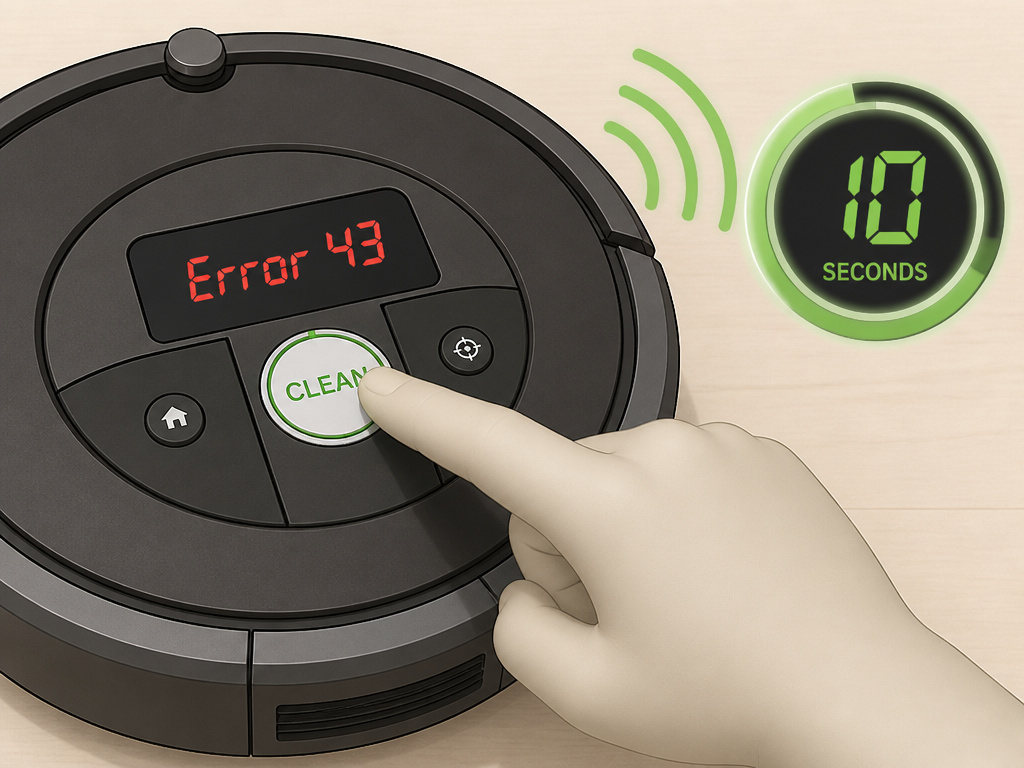
A reset isn’t just a reboot. It clears the active error log and recalibrates the sensor system. The timing varies.
| Roomba Series | Reset Action | Confirmation |
|---|---|---|
| 700, 800, 900 | Hold Clean for 10 seconds | Audible chime after release |
| i Series | Hold Clean for ~20 seconds | White light around bin lid, then full light ring cycle |
| j Series / Combo 10 Max | Hold Clean for 10 seconds | Audible chime or app reconnection prompt |
Don’t rush it. Hold the button firmly until you get the visual or audio cue. If you release too early, you’ve just started a cleaning cycle, not reset the error.
Preventing Error 43 From Coming Back
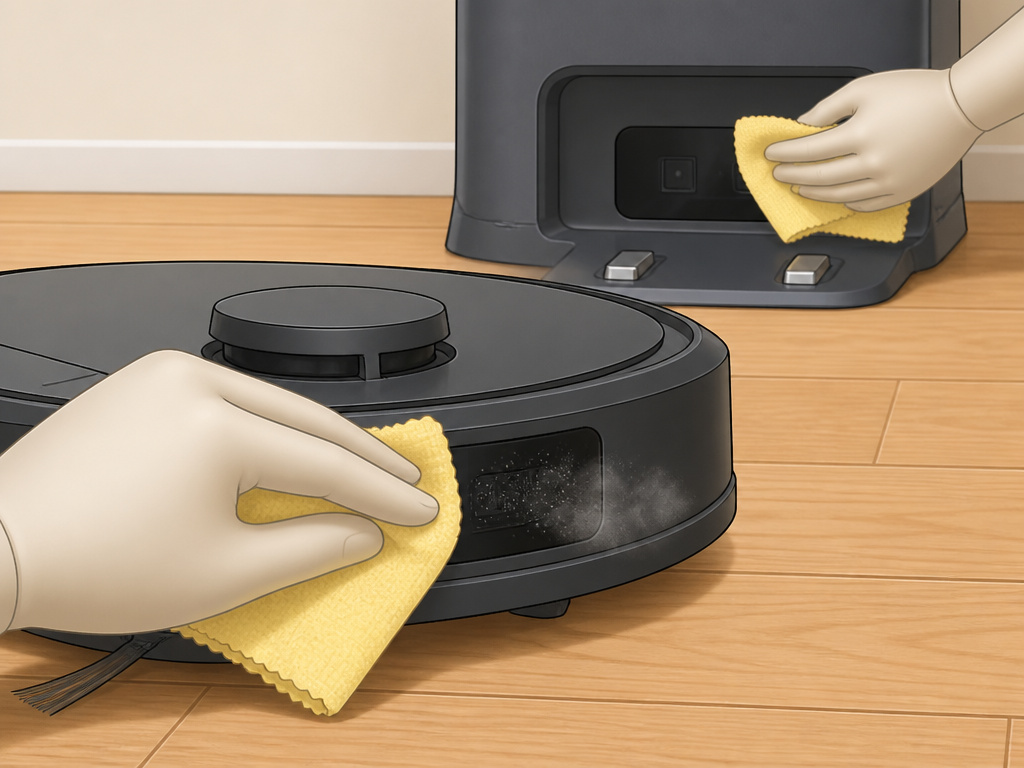
A one-time fix is good. Stopping it forever is better.
For all models: Keep the Home Base in an open location. Clutter or walls too close can reflect IR beams erratically. Maintain at least 3 feet of clearance.
For i Series users: Treat Virtual Walls like lasers. Never let them point at each other or the dock. Their job is to paint a single barrier line.
For j Series users: Be precise with Keep-Out Zones. When you draw a zone around the Home Base, make it just large enough to prevent docking collisions, don’t blanket the entire room corner. Also, if you physically move your Home Base, remember to update the smart map or delete the old zone and create a new one.
Universal maintenance: Wipe the robot’s front sensor window and the Home Base’s front IR emitter monthly with a dry cloth. Dust buildup diffuses the IR signal.
Where this goes sideways: Not updating the smart map after furniture changes. The robot thinks a Keep-Out Zone is still there, tries to avoid it, and gets stuck in the real-world version of the obstacle.
Frequently Asked Questions
My Roomba shows Error 43 far from the dock. Why?
You likely have a Virtual Wall placed somewhere you forgot about, or its beam is bouncing off a shiny surface like a glass cabinet or metal appliance leg. Unplug all Virtual Walls and test. Also, consider other IR sources in the room, like an audio/video receiver.
I deleted the Keep-Out Zone, but Error 43 remains. What now?
The map might be cached. Perform a hard reset on the robot (10-second hold), then also try rebooting the robot from the app’s settings menu (usually under “Robot Settings” > “Reboot Robot”). This forces a fresh map load.
Is Error 43 related to other sensor errors?
It’s a distinct navigation error, but it shares a family with other sensor halts. If you’re seeing multiple codes, start with Error 26 or Error 15 for cliff sensors, as dirty sensors can cause various misreads. Our guide to all Roomba error codes shows the relationships.
Can a dirty sensor cause Error 43?
Yes. If the IR receiver window on the Roomba is filthy, it might misread ambient light as a beam signal. Always clean the smooth, dark plastic sensor panel on the front bumper as a first step.
The error appears intermittently. Does that mean my Roomba is breaking?
Intermittent Error 43 usually points to an environmental cause, not a hardware failure. It’s the pattern of something in the room sometimes causing interference, a device that’s only on occasionally, or a Virtual Wall with low batteries creating an erratic beam. Check those before assuming the worst.
The Bottom Line
Roomba Error 43 is a “stop sign” error, not a breakdown. For older bots, move the physical IR sources. For newer ones, edit the digital map. The 10-second or 20-second hard reset is the crucial final step that most troubleshooting guides mention but don’t emphasize enough, it clears the robot’s stuck state.
If you’ve moved everything, reset the robot, and the code persists with no possible IR interference, then the sensor itself might need service. But that’s the last resort. For the vast majority, the fix is in the room, not in the robot.