
Understanding the Roomba Vacuum Only Self Emptying Feature
This post contains affiliate links. As an Amazon Associate, we earn from qualifying purchases.
A Roomba vacuum only self-empties automatically after it completes a cleaning mission lasting five minutes or longer. There is no scheduling option to force an empty on demand, the robot must run and return to its AutoEmpty Dock. If it’s not emptying, you must first check the mission duration, then use your model’s specific manual button sequence: hold HOME for 2–5 seconds (j series), press HOME once (i/s series), or use the app (Essential 2).
That five-minute floor is the single most common point of failure. A two-minute spot clean won’t trigger the evacuation cycle, leaving the bin full and the robot unable to start its next job.
What follows is the wiring diagram behind that rule: which models it cripples, the physical steps to override it, and the three mechanical failures that mimic a software glitch. By the last section, you’ll diagnose a non-emptying dock in under a minute.
Key Takeaways
- The 5-minute mission rule is hard-coded for models like the Roomba 100/1000 and Essential 2, shorter runs bypass the auto-empty cycle entirely.
- Manual evacuation is model-specific: j series (hold HOME 2–5 sec), i/s series (press HOME once), Essential 2 (app only). The Roomba 100/1000 has no manual override.
- A full bin that isn’t emptied leads directly to Error 36 (Bin Full) within 1-2 cleaning cycles, halting the robot.
- Error 353 signals a full dock bag or airflow blockage, not a robot failure. The dock’s LED will flash red.
- Communication failures are often dirty IR sensor windows (on the robot and dock) or corroded charging contacts, not a broken motor.
Why Your Roomba Won’t Self-Empty (And How to Force It)
The promise is simple: the robot docks and empties itself. The reality is a list of preconditions. If any one isn’t met, the dock sits silent.
The primary precondition is time. According to iRobot’s official support, a Roomba 100/1000 will only evacuate its bin after a successful mission of 5 minutes or more. The Roomba Essential 2 follows the same rule. There is no setting in the app to change this. A three-minute “Clean Everywhere” run or a “Spot Clean” command will end with the robot docking and charging, but not emptying.
This isn’t a bug. It’s a power-saving and bag-preservation feature. The evacuation motor draws significant current. Triggering it after a 90-second clean would waste bag capacity and cycle the motor needlessly.
Roomba 100/1000 and Essential 2 models lack a physical manual empty button. The auto-empty function is entirely governed by the 5-minute mission rule. For all other AutoEmpty-compatible models, a manual override exists.
If your robot meets the time requirement but still won’t empty, you must use its manual override. This is where models diverge.
- For Roomba j series and Combo 10 Max: Press and hold the robot’s HOME button for 2–5 seconds while it is seated on the dock.
- For Roomba i series and s series: Simply press the HOME button once while docked.
- For Roomba Max 700 Series: Press the Home button on the robot while it is on the dock.
- For Roomba Essential 2: You must use the iRobot Home App. There is no button press.
Listen for the dock’s motor to engage, a distinct, powerful suction sound that lasts about 10 seconds. If you hear nothing, the problem is likely communication or power.
The Anatomy of a Failed Empty: Dock vs. Robot
When the empty cycle fails, you need to know which component is at fault. The dock and robot communicate, but one is usually the culprit.
Start with the dock. Is its LED flashing red? A red flashing light means the dock has detected a clog or that the bag is full (often signaled by Error 353 on the app). The dock’s internal suction motor has a thermal protector. If it overheats from a blockage, it will shut down and require a 30-minute cool-off period before resetting.
If the dock light is solid or off, the problem shifts to the robot. The most common cause is a communication breakdown. For most models, the robot uses an IR sensor window on its front bumper to “talk” to a corresponding window on the dock. A layer of dust on either surface blocks the signal completely.
Where this goes sideways: Cleaning IR windows with a wet cloth. Moisture streaks the plastic, diffusing the IR beam. Always use a clean, dry microfiber cloth. Do not spray cleaner directly onto the sensors.
Roomba j series models do not use IR for dock communication. They rely solely on physical charging contacts. If a j series isn’t emptying, the issue is almost certainly dirty or corroded metal contacts on the robot’s underside or the dock’s pins. A melamine foam pad (like a Mr. Clean Magic Eraser) is iRobot’s approved material for scrubbing these contacts back to bare metal.
Step-by-Step Troubleshooting for a Silent Dock
Follow this sequence. It isolates the most common failures in order of likelihood.
- Verify Power to the Dock. Unplug the dock from the wall for 10 seconds, then plug it firmly back in. Test the outlet with a lamp. No power? Try another circuit.
- Check the Mission Duration. In the iRobot Home App, review the history of the last job. Was it under 5 minutes? If yes, that’s the cause. Send the robot on a “Clean Everywhere” cycle.
- Perform a Manual Empty. Use the correct button sequence for your model (detailed above). If the manual empty works, the problem was communication. If it fails, the problem is the dock or a clog.
- Inspect and Clean the IR Path. For non-j-series models, wipe the circular IR window on the robot’s front bumper and the rectangular window on the dock’s face with a dry cloth.
- Scrub the Charging Contacts. Power everything down. Use a dry melamine foam pad to gently scrub the three metal contacts on the robot and the three spring-loaded pins inside the dock.
- Check for Physical Clogs. Remove the robot from the dock. Look into the robot’s rear evacuation port and the dock’s receiving chute for packed debris, hair, or a stray object.
- Inspect the Debris Bag. Open the dock and remove the bag. Is it full or torn? A full bag triggers Error 353. A torn bag leaks dust into the dock’s internal filter, choking airflow.
| Symptom | Likely Cause | Immediate Fix |
|---|---|---|
| No empty after short mission (<5 min) | 5-minute rule enforced | Run a longer cleaning job |
| Manual empty works, auto does not | Dirty IR sensors or contacts | Clean IR windows and charging contacts |
| Dock motor sounds weak or labored | Clog in chute or full bag | Clear debris path; replace bag |
| Dock LED flashing red | Bag full or major airflow block | Replace bag; check for obstruction in tube |
| No sound, no light, no response | Dock not receiving power | Check outlet, power cord, and internal fuse |
Model-Specific Quirks and How to Live With Them
Not all Roombas are created equal. The self-emptying function varies significantly across series, and knowing your model’s personality prevents misdiagnosis.
Roomba 100/1000 Series: This is the most restrictive platform. It has no manual empty command. Its auto-empty is strictly governed by the 5-minute mission rule. If you only use it for quick cleanups, it will never self-empty. You must manually press the bin release button and empty it yourself every time.
Roomba Essential 2: Similar to the 100/1000, it lacks a manual button. You must use the app to trigger an empty, and it will only auto-empty after a 5+ minute mission. Its dock also lacks status LEDs, so diagnosis relies entirely on the app.
Roomba j series: As noted, these models use contact-based communication, not IR. This makes them less prone to signal blockage but more vulnerable to contact corrosion, especially in humid environments. Weekly contact cleaning is not overkill.
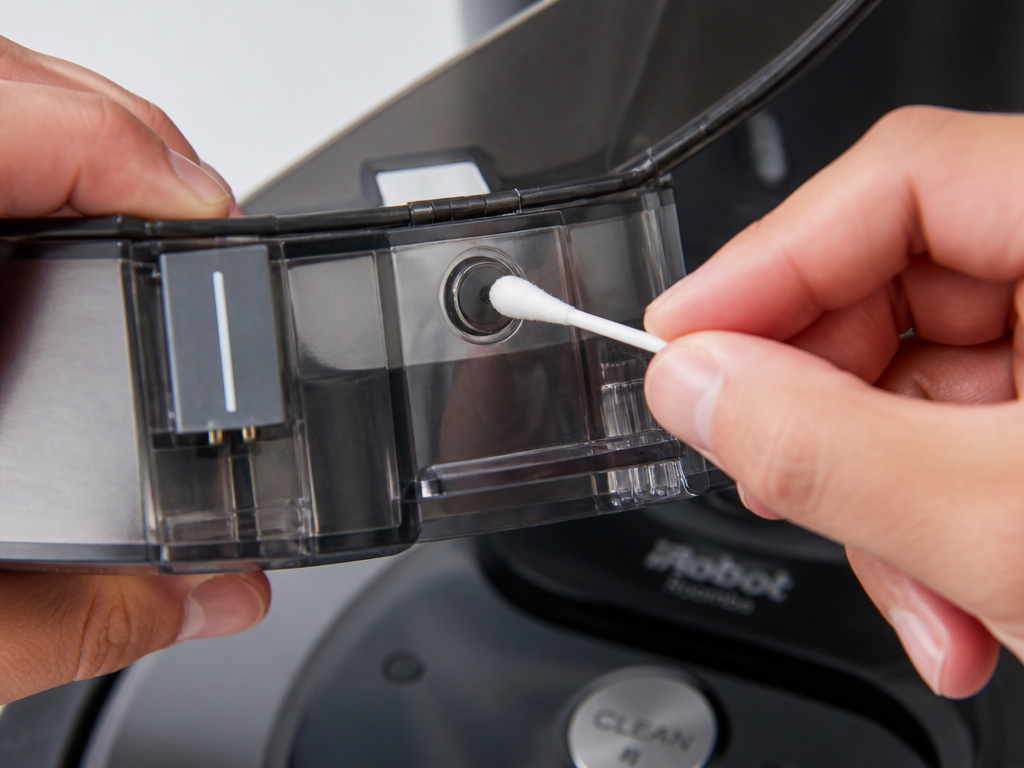
Roomba i7+/i8+/s9+: These popular models have the most robust system. They use IR and have a manual button. Their most common point of failure is the full bin sensor inside the robot’s dustbin. If this small infrared sensor gets dirty, the robot thinks the bin is perpetually full and won’t trigger an empty cycle, even if the bin is spotless. Wipe it with a dry cotton swab.
The Consequences of Skipping Maintenance
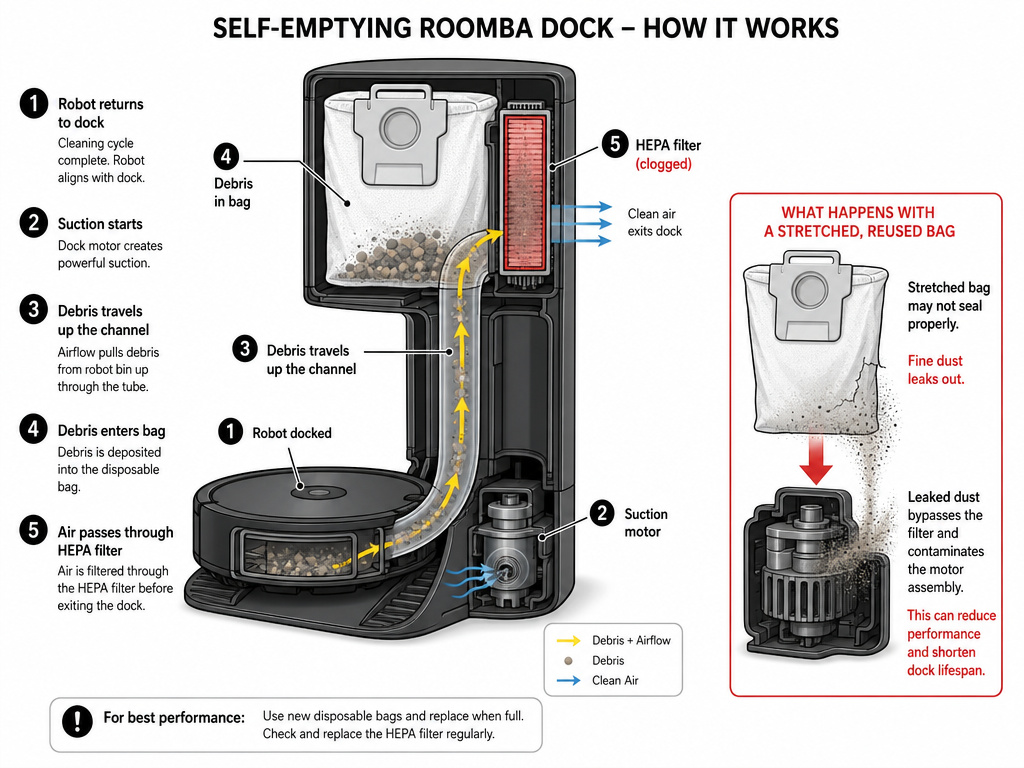
A self-emptying system doesn’t mean zero maintenance. It means the maintenance shifts location, from the robot’s bin to the dock’s internals.
Ignore it, and you get predictable failures. A bin that isn’t emptied will cause Error 36 (Bin Full) within a cycle or two. The robot will refuse to start a new job. More critically, a clogged dock or a full bag forces the suction motor to overwork. It overheats, the thermal protector trips, and the dock becomes inert for 30 minutes. Repeated overheating cycles will shorten that motor’s life.
The debris bag has a finite capacity. IRobot recommends replacement after 60 bin empties. Push it to 80 or 90, and the bag’s pores become packed. Airflow drops, the motor strains, and fine dust can bypass the bag, coating the dock’s internal HEPA filter. This hidden filter is not user-serviceable on most docks. Once it’s clogged, the entire dock often needs replacement.
Common mistake: Reusing a “shaken-out” debris bag. The bag material stretches and its filtering efficiency collapses. A reused bag will leak dust into the dock’s motor assembly, leading to a permanent, gritty whine within a month.
Set a calendar reminder. Every two months: replace the robot’s air filter. Every six months: replace the dock’s debris bag, regardless of the app’s prompt. Once a year: replace the robot’s front caster wheel and brushes. This schedule prevents 90% of performance degradation.
Frequently Asked Questions
Why does my Roomba dock sometimes empty three times in a row?
This is the dock’s clog-recovery routine. If the suction motor detects restricted airflow (from a nearly-full bag or a partial clog), it will automatically cycle on and off 2-3 times to try and clear the obstruction. Take it as a warning. Check the bag and inspect the evacuation path for a hair wrap or packed dust.
Can I use off-brand bags in my AutoEmpty Dock?
You can, but you risk Error 353 and dust leakage. IRobot’s bags are designed with a specific porosity to balance airflow and filtration. Third-party bags often use denser material, which strains the motor, or looser material, which lets dust through. The dock’s bag-present sensor can also fail to recognize non-OEM bags.
My Roomba empties but the app still shows “Bin Full.” What’s wrong?
The robot’s internal full bin sensor is dirty or blocked. This small infrared sensor is located inside the robot’s dustbin compartment. Open the bin, remove the filter, and look for a small plastic window. Wipe it carefully with a dry cotton swab. This sensor must see a clear beam of light; dust on the lens tricks the robot.
Is the 5-minute rule the same for all self-emptying Roombas?
No. The 5-minute mandate is explicitly called out for the 100/1000 series and the Essential 2. For higher-end models like the j, i, and s series, auto-empty is triggered after every successful docking, regardless of mission length (though very short spot cleans may be an exception). Always check your model’s official iRobot support page.
What does Error 353 mean?
Error 353 specifically indicates “Evacuation Bag Full or Airflow Blocked” on Roomba Plus 400, Plus 500, and Max 700 series models. The fix is to remove and replace the dock’s debris bag. If the error persists after a new bag, there is a physical clog in the evacuation tube between the dock’s port and the bag chamber.
The Bottom Line
A Roomba that won’t self-empty is almost always a problem of missed conditions, not broken hardware. Start the clock: did it run for five minutes? Then move to the physical layer: clean the IR eyes and the metal teeth. The system is simple, power, signal, and a clear path for dirt.
For most homes, a mid-tier model like a Roomba j7+ or i7+ strikes the best balance. They have manual overrides, clear status lights, and bypass the most restrictive rules. If yours is still silent after the basics, the answer is rarely in the settings menu. It’s in the dust you missed.