
How to Resolve the Roomba Vacuum Error 15 Software Glitch
This post contains affiliate links. As an Amazon Associate, we earn from qualifying purchases.
Roomba Error 15 is a general internal error notification, not a single diagnosis. For most s, i, and j Series models, it’s often a harmless log of a problem the robot already fixed itself, especially after a battery pull. If the error repeats, a model-specific reboot is the first fix. For Roomba Combo j9 and j7 models on software version 23.53.7, Error 15 is a known bug that breaks directed room cleaning until a November update.
That distinction between a log entry and a real failure is where most troubleshooting goes wrong. Treating every Error 15 as an urgent hardware fault leads you to delete maps or factory reset for no reason. The robot’s series and software version tell you whether this is a shrug or a stop.
What follows is the breakdown by model: the 9-second reboot that works for j Series, the 20-second hold for i and s Series, and the specific software workaround for Combo j9 owners stuck with a broken directed clean. We’ll walk through when to reboot, when to check your map, and the one scenario where you should call iRobot immediately.
Key Takeaways
- Error 15 on s, i, and j Series Roombas is frequently just a notification of a past, self-resolved glitch, especially after reinserting the battery.
- The correct reboot procedure is model-specific: hold CLEAN for 9 seconds (j Series), 20 seconds (i/s Series), or use the app’s reboot command.
- Roomba Combo j9 and j7 models running software version 23.53.7 have a confirmed bug causing Error 15 during directed room cleaning; use “Clean Everywhere” or a pre-June 2024 map until the November update.
- Never delete your Smart Map after one Error 15. Restore a previous “Clean Map” from the app’s history first.
- If Error 15 appears on every single cleaning job and prevents any operation, it indicates a persistent internal hardware fault — contact iRobot support.
What Roomba Error 15 Actually Means
Error 15 is a catch-all. IRobot’s own support materials label it an internal error, internal board error, or internal navigation error depending on your model. It can mean a software process crashed, a communication bus between components glitched, or the navigation system got temporarily confused.
Error 15 is a general internal error rather than a universal diagnosis. Depending on the Roomba series, it may relate to an internal software process that stopped unexpectedly, communication between internal components, the navigation system, an interrupted cleaning mission, or a temporary condition from which the robot has already recovered.
The key phrase is “already recovered.” For many modern Roombas, Error 15 is a post-mortem report. The robot hit a problem, handled it, and is now telling you what happened. This is why you’ll often see it once after powering up or reinserting the battery, and then the robot works fine. Treating that single instance as a breakdown is overkill.
The error becomes meaningful when it’s persistent. If Error 15 appears mid-cleaning and stops the job, or shows up on every mission launch, the robot isn’t recovering. That’s when you move from noticing to fixing. Your first step isn’t guessing at the cause—it’s performing the correct reboot for your model. A generic “unplug it” doesn’t work the same on every Roomba, and using the wrong button sequence can accidentally trigger a factory reset.
The 9-Second Reboot That Actually Works
Rebooting clears the robot’s working memory and restarts all internal processes. It’s the digital equivalent of a deep breath. But you have to do it right.
The absolute best method is to use the reboot command inside your iRobot app. In the newer Roomba Home App, go to the Robots tab, tap the three-dot menu for your robot, and select “Reboot.” In the classic iRobot HOME App, navigate to Product Settings and choose “Reboot Roomba.” This is safe and model-agnostic.
If the app isn’t responding or you can’t connect, use the manual button procedure. This is where the model number matters.
| Roomba Model Family | Manual Reboot Procedure | What to Look For |
|---|---|---|
| j Series, Combo 10 Max | Hold CLEAN for 9 seconds | Light ring swirls white, then shuts off. |
| i Series, s Series | Hold CLEAN for 20 seconds | Robot may play a tone; light ring responds. |
| Wi-Fi 800 & 900 Series | Hold CLEAN for 10 seconds | Standard reboot sequence. |
| Essential Series | Hold HOME & SPOT for 12 seconds | Button combo, not the CLEAN button. |
| Older Non-Wi-Fi (500, 600, 700, e Series) | Hold HOME & SPOT for 10 seconds | Avoid if your model has a green ID dot on the underside. |
Common mistake: Using a 20-second hold on a j Series Roomba. That extended press can be interpreted as a reset command on some models, risking your map data. Match the time to the series.
After initiating the reboot, place the robot on a flat, open floor. The process can take up to 90 seconds. Wait for the light ring to fully shut off. Then, press CLEAN once to start a test mission. If it runs normally, the Error 15 was transient. If the error returns immediately, the problem is deeper.
When Error 15 Is a Known Software Bug
Here is the non-commodity detail most troubleshooting guides miss. For owners of the Roomba Combo j9 and Combo j7 running software version 23.53.7, Error 15 isn’t random—it’s a documented bug.
This specific version causes Error 15 to trigger consistently during directed room cleaning missions. The “Clean Everywhere” function works fine. IRobot has acknowledged this and slated a fix for a software release in early November.
If you have this model and software, you have two workarounds right now: 1. Use “Clean Everywhere” instead of cleaning specific rooms. 2. In the iRobot HOME App, go to your History, select a successful “Clean Map” report from before June 24, 2024, and use the “Update Smart Map” function. This reverts your map to a version compatible with directed cleaning.
This bug is a perfect example of why checking your robot’s software version matters. Wasting an hour on hardware fixes for a known software issue is frustrating and unnecessary. You can find your software version in the app under Product Settings > About.
Don’t Delete Your Map—Restore It First
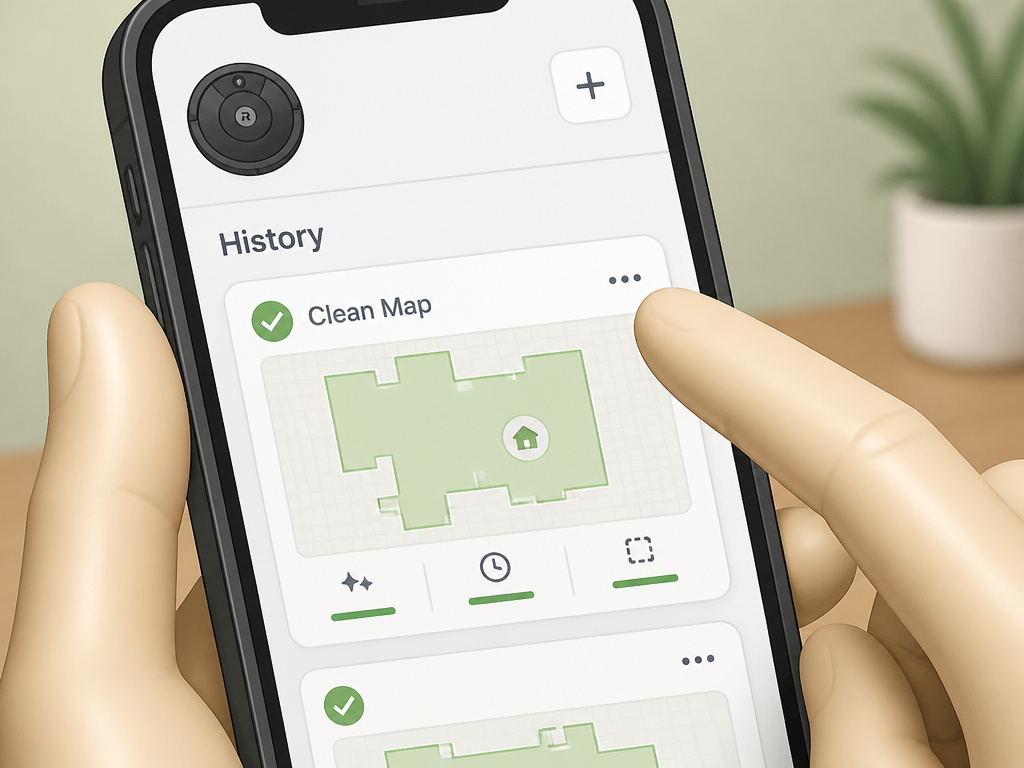
Error 15 can be linked to map corruption, especially if the robot fails in one specific room or during mapped jobs. The instinct is to delete the map and start over. That’s often the worst first move.
Deleting a map, especially on i3, i4, and i5 models that only support one map, means you lose all your room labels, keep-out zones, and cleaning preferences. The robot must then re-explore your entire home, which can take multiple missions.
Instead, restore a previous map version. In the Classic iRobot HOME App: 1. Open the History section. 2. Find a “Clean Map” report from a day when cleaning worked perfectly. 3. Tap the three-dot menu on that report. 4. Select “Update Smart Map.”
This replaces the current, potentially glitched map with data from that successful run. It’s a one-click fix that preserves your setup. Only if restoring a previous map fails should you consider deleting and recreating the map from scratch.
This approach is also your first line of defense against other navigation-related error codes that might be conflated with a general internal fault.
The Step-by-Step Troubleshooting Ladder
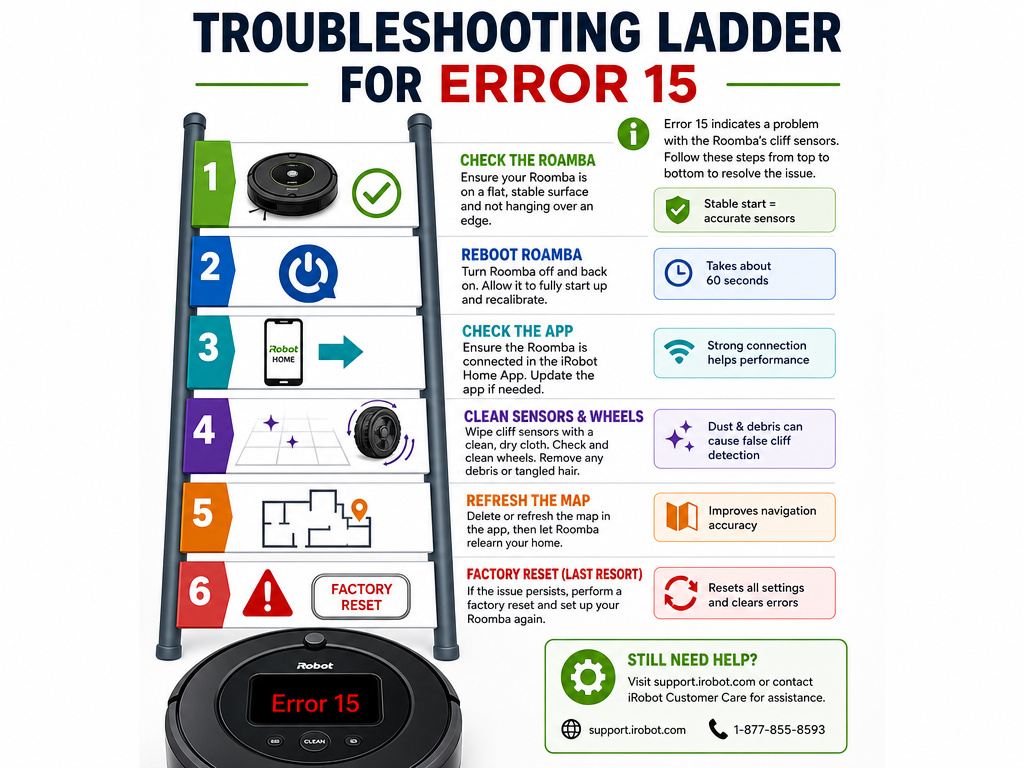
Follow these steps in order. Do not jump to the bottom because step one seems too simple.
- Retry and Observe. Move the Roomba to a flat, clear area. Press CLEAN once. Does it run a full mission? If yes, note the single error and move on. If it errors again, proceed.
- Perform the Correct Reboot. Use the app command or the manual button hold for your specific series (see table above).
- Update Everything. Ensure your iRobot app is updated via your phone’s app store. Check that the robot’s software is also current. An update can resolve conflicts that cause internal errors.
- Check the Environment. Remove loose cables, clothing, and small objects. Ensure the wheels and brushes spin freely. For camera-based models (i, j, s Series), wipe the camera lens and ensure the room is well-lit.
- Restore a Previous Smart Map. If the error occurs during mapped cleans, use the map restoration process outlined above before any deletion.
- Factory Reset (Last Resort). This removes the robot from your account and erases all settings. In the app, this is under Product Settings > About > Remove Device > Factory Reset. Back up compatible Imprint Smart Maps first if the app offers the option. Models like the i3/i4/i5 cannot save maps, so a reset means starting completely over.
Where this goes sideways: Factory resetting a Roomba with a persistent hardware fault. If the error is caused by a failing internal board, a reset does nothing but waste your time and delete your data. If the error survives a correct factory reset, it’s almost certainly a hardware issue.
When to Call iRobot Support
Stop troubleshooting and contact iRobot Customer Care if: – Error 15 appears at the start of every cleaning job and prevents any movement. – The error returns immediately after a correct model-specific reboot and a factory reset. – The robot repeatedly restarts itself in a loop during cleaning. – Your Roomba is a Combo j9/j7 with the directed cleaning bug, and the promised November update does not resolve it.
Have your robot’s model number, serial number, and current software version ready. A recent cleaning history report from the app can help the support agent see if the problem is tied to a specific room or time.
What Not to Do: Avoid These Common Mistakes
Your time is valuable. Don’t waste it on these dead ends.
- Don’t assume it’s Wi-Fi. Error 15 is an internal robot error. Troubleshooting your router or reconnecting to the app is irrelevant unless you have a separate, confirmed connectivity issue.
- Don’t delete your map after one error. Always try restoring a previous version first.
- Don’t use reboot instructions for a different series. The 9-second hold for a j Series is not the same as the 20-second hold for an i Series.
- Don’t remove the battery unless it’s the specified fix. Only some older 600 Series models with a green identification dot require a battery pull (for 30 seconds). Modern batteries are not user-serviceable for a reason.
- Don’t ignore persistent errors. One Error 15 is a log. Ten Error 15s are a symptom. If the robot cannot complete a single mission, it needs professional attention.
This logic applies to other persistent faults. A robot that’s not vacuuming or going in circles has a different root cause than an internal error, but the principle of methodical, step-by-step diagnosis is the same.
Frequently Asked Questions
Is Roomba Error 15 serious?
Usually not. For most models, a single Error 15 after power-up is a non-critical notification. It becomes serious if it recurs constantly and prevents cleaning, indicating a persistent internal hardware or software fault.
How do I clear Error 15 on my Roomba j7?
First, try the app-based reboot. If that fails, manually hold the CLEAN button on the robot for 9 seconds until the light ring shuts off. If you have software version 23.53.7 and the error happens during directed cleans, use the “Clean Everywhere” option or revert to a pre-June 2024 map until the update.
Can a dirty Roomba cause Error 15?
Indirectly, yes. Extreme dirt buildup can overload the main brush motor or block sensors, causing the robot to overcurrent or navigate poorly, which might trigger an internal error. A thorough cleaning of brushes, wheels, and sensors is a good preventative step, but it’s rarely the sole fix for a repeating Error 15.
What’s the difference between Error 15 and other common codes?
Error 15 is a general internal error. Others are specific: Error 14 is a bumper switch fault, Error 6 is a stuck wheel, and Error 26 is a cliff sensor problem. Each has a distinct troubleshooting path.
Should I factory reset for Error 15?
Only as an absolute last resort after trying a reboot, software update, and map restoration. A factory reset erases all your settings and maps. For models like the i3, it means completely remapping your home.
The Bottom Line
Roomba Error 15 is more often a whisper than a shout. Your response should match its volume. A one-time blink after a battery change? Ignore it. A constant interruption that kills every job? Follow the ladder: reboot correctly for your model, check for a software bug if you own a Combo j9/j7, restore your map, and only then consider a nuclear reset.
The robot’s indicator lights and other specific error codes exist to give you clues. Error 15 is the vaguest clue of all. Start with the simple, model-specific fix. You’ll save an afternoon and probably your sanity.