
Shark Robot Vacuum Not Working? The Complete 6-Step DIY Fix
This post contains affiliate links. As an Amazon Associate, we earn from qualifying purchases.
A Shark robot vacuum not working almost always traces to one of six failures: a dead battery, dirty charging contacts, a Wi-Fi band mismatch, a clogged filter, obstructed wheels, or a sensor blinded by dirt. The fix is a systematic check of power, connection, and mechanics, skip a step and you’ll chase the wrong problem for hours.
That sequence isn’t a guess. It’s the order a repair tech uses because each failure has a specific, observable symptom. A battery issue looks different from a Wi-Fi problem, which feels different from a jammed wheel.
What follows is the full diagnostic map: the six-step sequence, how to read your model’s specific error lights, the mechanical fixes for brushes and suction, and the one software reset that clears corrupted maps. By the end, you’ll know whether it’s a five-minute clean or a call to support.
Key Takeaways
- Start with the 6-step diagnostic sequence, it isolates the root cause in under ten minutes.
- Clean the gold charging contacts on the robot and dock with a dry cloth; oxidation here is the #1 cause of “not charging” reports.
- Shark robots connect only to 2.4 GHz Wi-Fi networks; a 5 GHz signal will cause persistent app disconnection.
- If the robot is completely dead after 2 hours on the dock, the internal battery has likely failed and needs replacement.
- Operating temperature matters: storing or charging outside 50°F–104°F (10°C–40°C) can permanently damage the battery.
The 6-Step Diagnostic Sequence (Start Here)
Don’t start by taking the robot apart. Follow these steps in order. Each step either fixes the problem or rules out a whole category of failure.
- Verify Dock Power & Placement. Is the dock’s green power light on? Plug the dock into a different outlet. Ensure the dock is on a level, bare floor with 3 feet of clearance on each side and 5 feet in front. An uneven surface or a nearby chair leg can prevent successful docking.
- Inspect & Clean Charging Contacts. Power off the robot. Look for the small, spring-loaded gold pins on the robot’s underside and the matching plates on the dock. Wipe both with a dry microfiber cloth. Dust and oxidation here are invisible killers of the electrical connection.
- Check the Robot’s Power Switch. Locate the physical power switch on the side of the robot. It must be in the “On” (I) position for the robot to charge or respond. If it’s off, the robot will appear completely dead.
- Perform a Hard Reset. Turn the dock’s power switch off. Hold the robot’s power button in the “Off” (O) position for 10 full seconds. Turn the dock back on, then place the robot on the dock. This clears any corrupted temporary state in the robot’s motherboard.
- Observe the Indicator Lights. Place the robot on the dock. A flashing blue light means it’s charging. A solid blue light means a full charge. A solid or flashing red light indicates an error, proceed to the next section to decode it.
- Test for Battery Failure. If the robot is utterly lifeless after two full hours on a verified, clean dock, the battery is the likely culprit. The 90-day accessory warranty covers it if recently purchased.
Where this goes sideways: Skipping straight to step 6 because the robot is dead. If the contacts are dirty or the dock is unplugged, a new battery won’t help. The 2-hour test is the last step, not the first.
Decoding the Blinking Lights
Shark robots communicate through light patterns, not screens. Here’s what the most common sequences mean and exactly what to do.
Solid Red Light (Often With Other Lights)
A solid red light is a stop sign. It means the robot has encountered an error severe enough to halt operation. The companion light tells you where to look.
| Light Pattern | What It Means | Immediate Action |
|---|---|---|
| Solid Red + Flashing Blue Dock Light | Charging error (Error 24). The robot is on the dock but not receiving power. | Re-clean the charging contacts. Ensure the dock is powered. Check that the robot’s power switch is ON. |
| Solid Red “!” + Flashing Red Wi-Fi | Wi-Fi password incorrect. The network password has changed since setup. | Re-enter the current Wi-Fi password in the SharkClean app under device settings. |
| Solid Red + Flashing Red Clean Icon | Suction motor error or clog. The airflow is severely restricted. | Empty the dust bin. Remove and clean the HEPA and foam filters. Check for blockages in the air path. |
Flashing Red Light
A flashing red light is a warning, something needs attention before the next clean, but the robot may still operate.
If the robot’s low charge light is blinking red, there is not enough battery power for it to return to the dock automatically; it must be manually placed on the dock.
- Flashing Red Battery Icon: The battery is below 15%. Manually place it on the dock. A full charge can take up to 6 hours.
- Flashing Red “!” + Flashing Red Wi-Fi: The robot cannot see your Wi-Fi network’s SSID. Reboot your router.
- Alternating Red Clean & Blue Dock Lights: The robot is physically stuck. Lift it and clear any wrapped cords or high-pile rug fringes from its wheels and brush.
No Lights At All
If the robot shows no lights when placed on the dock or when any button is pressed, you have a total power failure. Go back to the diagnostic sequence, focusing on steps 1 (dock power), 2 (contacts), and 3 (robot power switch). If after all that it remains dark, the battery or internal board has failed.
The Mechanical Fixes: Brushes, Suction, and Wheels
When lights are normal but performance is poor, the problem is physical. These are the most common mechanical brush roll issues and how to solve them.
Main Brush Roll Not Spinning
Turn the robot over and remove the brush roll cover. Cut away any hair or string wound around the ends of the brush. Pull the brush out and clear the axle socket of debris. A jammed brush roll triggers an error code and kills suction.
Side Brush Not Spinning
The small side brush can snap off or get tangled. Unclip it and clear any hair from the motor shaft. If the brush is cracked or missing fins, replace it. A dead side brush won’t stop the robot, but it will leave dirt in corners.
Loss of Suction or Debris Left Behind
This is almost always a clogged filter or full bin. Empty the dust bin after every cycle. Tap out the HEPA filter weekly. Wash the foam filter (if marked washable) monthly and let it air-dry for 24 hours before reinstalling. A wet filter will destroy suction and can mold.
Robot Struggling to Move or Squeaking
Flip the robot and spin each drive wheel by hand. They should turn freely. Clear any hair, thread, or carpet fiber wrapped around the axles. A stuck wheel strains the motor and causes the robot to drag or circle.
Connectivity and Software Hangups

These problems make the robot seem “dumb”, getting lost, disconnecting from the app, or refusing to start schedules.
Wi-Fi and App Disconnections
Shark robots only work on 2.4 GHz Wi-Fi bands. If your router broadcasts a combined 2.4/5 GHz signal under one name, the robot often fails. Log into your router and split the bands, or create a dedicated 2.4 GHz network for the robot. This single fix resolves most persistent connection problems.
Mapping Failures and Erratic Navigation
Dirty sensors cause this. Wipe the front bumper, the cliff sensors (usually four small windows on the underside), and the top-mounted camera or sensor dome with a dry cloth. Also, ensure the room is reasonably lit; robots struggle in near darkness.
The part nobody mentions: If the robot constantly remaps your home or gets “lost” in known areas, the map data is corrupted. In the SharkClean app, go to Settings > Delete Map. The robot will create a new, clean map on its next full clean.
Firmware Update Failures
Keep the robot on the dock with Wi-Fi connected overnight. Updates usually push automatically. If an update seems stuck, a factory reset via the app can clear the queue. Remember, this erases all maps and schedules.
When the Problem is the Battery or Environment
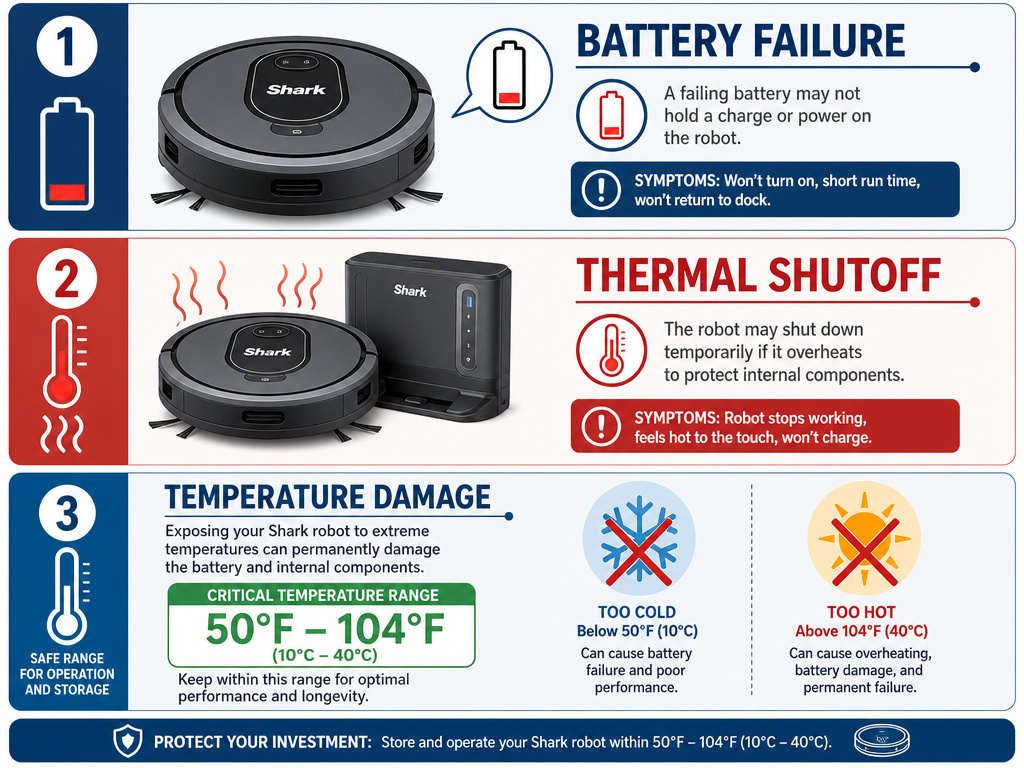
Sometimes the issue isn’t a part you can clean.
Battery Failure Symptoms
- The robot dies minutes after leaving a full charge.
- It won’t hold a charge overnight.
- It’s completely unresponsive after a 2-hour dock test. The battery is a wear item. Replacement is straightforward on most models, unclip the cover, disconnect the old battery, and plug in the new one.
Thermal Shutoff and Overheating
If the robot or self-empty base gets too hot, it will shut down. You’ll smell a faint hot-plastic odor. Unplug the base for 30 minutes to let it cool. Ensure the robot’s filters and bin are clean, as clogs make the motor overwork. Chronic overheating points to a failing motor or battery.
Temperature Damage
The manual is strict: don’t store, charge, or use the robot below 50°F (10°C) or above 104°F (40°C). Cold permanently reduces battery capacity. Heat increases the risk of fire. A robot left in a garage over winter may not work come spring.
Frequently Asked Questions
Why does my Shark robot vacuum keep stopping mid-clean?
It’s usually overheating, hitting a hidden obstacle, or the dust bin is full. Check for clogged filters, wrapped brushes, and ensure the bin is empty. Also, clean the cliff sensors if it’s stopping near stairs or dark floor transitions.
How do I reset my Shark robot vacuum?
For a soft reset, hold the power button on the robot for 10 seconds. For a full factory reset, use the SharkClean app: go to Settings > Factory Reset. This fixes most software glitches but erases your smart map.
Why won’t my robot vacuum go back to its dock?
The path is blocked, the dock’s signal is weak, or the front infrared sensors on the robot and dock are dirty. Clear a direct path, move the dock to a more open location, and wipe the sensors with a dry cloth.
Is it worth repairing an older Shark robot vacuum?
Compare the cost of the needed part (like a $40-$60 battery) to a new model. If the repair is under half the price of a new one and the body is in good shape, repair it. Older models with repeated power issues or motor failures may not be worth it.
Can I use my Shark robot on thick rugs?
Most models handle low-pile rugs. For thick rugs or tassels, use the magnetic boundary strips to block off the area. The robot’s wheels can get stuck, and high pile can trigger cliff sensor errors.
Before You Go
Start with the six steps. Ninety percent of “not working” reports are solved by cleaning contacts, checking the power switch, and confirming the dock is live. For the remaining ten percent, the error light chart tells you exactly which component to clean, reset, or replace.
If you’ve done all this and the robot remains dead, the issue is likely a failed battery or mainboard. Contact Shark support, the robot itself has a one-year warranty. For homes with pets, choosing a model designed for the job from the start can prevent many brush roll problems and suction loss. The right tool makes all the difference.