Roomba Vacuum Error Code 14 | The Fix That Cuts It in Half
This post contains affiliate links. As an Amazon Associate, we earn from qualifying purchases.
Roomba vacuum error code 14 means the robot cannot detect its dustbin. The fix matches three things: proper bin seating, clean metal contact points, and a completely dry filter. On a 600 or 700 series, the single contact is on top of the bin; on 800 and 900 series, two contacts are on the left and right sides. Reinstalling a damp bin or filter triggers the error within seconds.
That “bin not detected” message is a simple electrical check failing. The robot sends a tiny current through metal contacts on the bin. If the circuit is broken by dirt, misalignment, or moisture, the error pops up. Your job is to find and close that circuit.
What follows is the systematic fix that works for every Roomba model, the model-specific details most guides skip, and the one test that tells you if you need a new bin.
Key Takeaways
- Error 14 is an electrical detection fault, not a mechanical jam. The fix is about cleaning contacts and ensuring a dry, proper seal.
- Moisture is the stealth culprit. A bin or filter washed and reinstalled while damp will cause an immediate, repeating Error 14.
- Model matters. The 600/700 series has one central top contact; the 800/900 series has two side contacts. Clean the matching spots on the robot itself.
- A 10-second robot reboot (hold CLEAN) can clear a “stale detection state” after you’ve cleaned everything, a step iRobot’s official guide sometimes omits.
- If cleaning fixes the error for only one run, the bin assembly itself is likely failing and needs replacement.
What Roomba Error 14 Actually Means
The robot sees an open circuit where a closed one should be. It’s not a judgment about how full the bin is or whether the filter is clogged. It’s a pure “is it there?” check.
Older Roomba 600, 700, and 800 series announce “Error one four.” Newer 900 series models say “Error fourteen.” Wi-Fi-connected models in those families may tell you to open the iRobot HOME app. The message varies, but the underlying fault is identical.
Error 14 or 1-4 means Roomba is not detecting an installed bin. The troubleshooting and full bin indicators will illuminate. Roomba 600 series does not have a full bin indicator. This is the core technical definition from iRobot’s official support article. The robot expects continuity between specific metal pins. When it doesn’t get it, the error lights turn on and cleaning stops.
The 3-Step Fix for Roomba Error 14 (and Where It Goes Wrong)
Follow this sequence. Jumping to step three without doing step two is why people get stuck in a loop.
Step 1: Remove, Inspect, and Reseat the Bin
Take the bin out. Look inside the robot’s bin cavity. Is there a large clump of hair or debris physically blocking the bin from sliding all the way in? Clear it.
Now, reinsert the bin. You should hear and feel a distinct click. No click means it’s not seated. Push firmly on the bin’s handle until it locks into place. This solves about 30 percent of Error 14 cases instantly.
Where this goes sideways: People do this two or three times and give up. If the first re-seat doesn’t work, the problem is almost always at the electrical contacts, not the physical latch.
Step 2: Find and Clean the Contacts. Model by Model
This is the load-bearing step. You must clean the metal contacts on the bin and the matching pins or pads inside the robot.
| Roomba Series | Bin Contact Location | What to Clean |
|---|---|---|
| 600, 700 | Single contact on top of bin, centered. | The small metal plate on the bin and the corresponding spring-loaded pin inside the robot’s bin bay. |
| 800, 900 | Two contacts, left and right side of bin near the top. | Both metal strips on the bin and the two contact points inside the robot. |
Power off the Roomba. Use a dry microfiber cloth first to wipe away loose dust. For stuck-on grime, slightly dampen a corner of the cloth with water, never cleaner, and gently scrub the metal. A Magic Eraser (melamine foam) works for stubborn, oxidized film. Dry the contacts completely with a different dry part of the cloth before moving on.
Common mistake: Only cleaning the bin. You must also wipe the contacts inside the robot’s bin bay. Dirt builds up there too, and it breaks the same circuit.
Step 3: Ensure Everything is Bone Dry and Reboot
This catches the most frustrating repeat cases. If you washed the bin or filter, residual moisture is your enemy. A damp filter in its slot creates enough conductivity to confuse the sensor. Leave the bin and filter apart on a towel for at least two hours, or overnight.
Before you reassemble, do a hard reboot. Hold down the CLEAN button on the robot for 10-20 seconds until the light ring turns off and then back on. This clears any cached error state in the robot’s memory. Community reports show this reboot fixes “phantom” Error 14 alerts that persist after cleaning.
Reinstall the completely dry bin and filter. Press CLEAN to start a test run.
When Error 14 Keeps Coming Back
If the error returns after your next successful cleaning job, you’re dealing with an intermittent fault. The pattern tells you what’s wrong.
Error returns immediately every time you reinsert the bin: The bin assembly is likely defective. The internal sensor wire or contact has failed. The fastest diagnostic is a swap test. If you have a friend with the same model or a known-good original bin, try it. If the error disappears with the other bin, you need a replacement.
Error appears only mid-cleaning or after emptying: This points to a loose connection that vibration disrupts. Check that the filter is snapped firmly into its slot inside the bin. A slightly warped bin can also lose contact when the robot moves.
Error started right after washing the bin: You didn’t dry it long enough. It’s almost always moisture. Give it 24 hours in a warm, dry place.
The part nobody mentions: If you’ve cleaned, dried, rebooted, and the error still appears, contacting iRobot support with this exact timeline, “I did X, then Y, the error pattern is Z”, gets you past tier-one scripted troubleshooting immediately.
How to Confirm a Faulty Bin Assembly
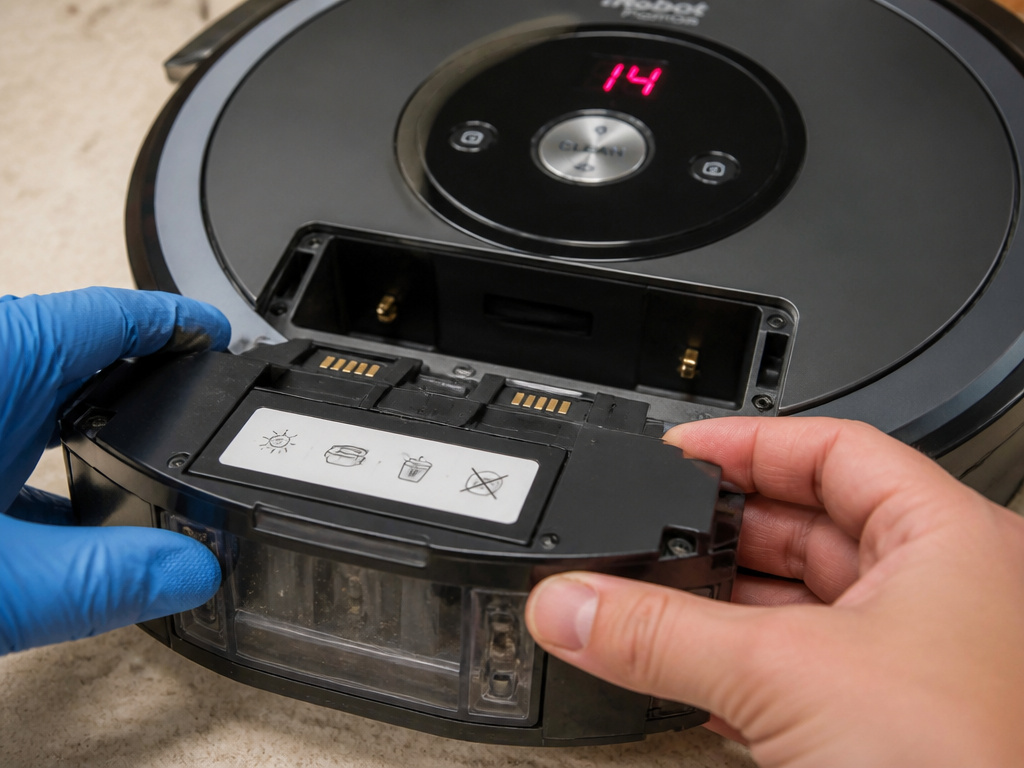 Before you spend money, confirm the diagnosis. The swap test is definitive.
- Secure a known-working, original bin for your exact Roomba model.
- Perform the full cleaning and drying procedure on your robot’s bin bay contacts.
- Insert the loaner bin. Start a short, manual clean.
- If the error is gone, your original bin is faulty. If the error persists, the problem may be in the robot’s internal wiring, a less common but more serious issue.
This test separates a $30 bin replacement from a $150 service visit. Don’t guess.
Preventing Roomba Error 14 For Good
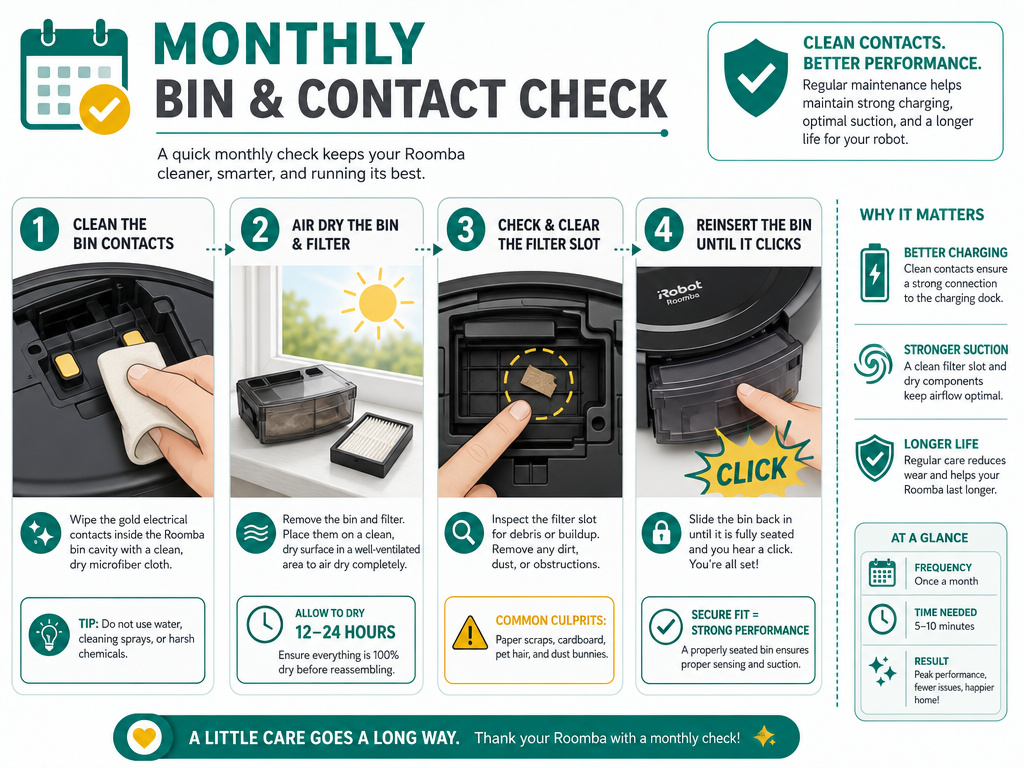 A little routine maintenance stops this error before it starts. Add these to your monthly robot check.
- Wipe the bin contacts and the robot’s contact points with a dry cloth every two weeks. This takes 15 seconds.
- Never reinstall a damp bin or filter. Shake out the filter, tap the bin clean, and let washed components air-dry for a full day.
- Check the filter slot inside the bin for debris each time you empty it. A piece of cardboard or a stuck plastic tag can lift the filter just enough to break contact.
- Listen for the click. If bin insertion feels mushy, inspect the bin cavity for obstructions.
These steps are simpler than fixing a persistent Roomba error 11 or diagnosing a Roomba Error 43. They keep the electrical path clear.
Frequently Asked Questions
Why did my Roomba get Error 14 after I washed it?
Water is conductive enough to short the low-voltage detection circuit. Even a slightly damp filter creates a false “open” signal. The robot reads this as a missing bin. Always ensure the bin and filter are completely dry before reinstalling.
Is Roomba error code 14 the same on all models?
The fault is identical, but the announcement varies. Older 600, 700, and 800 series say “Error one four.” Newer 900 series say “Error fourteen.” The fix is the same: clean the contacts, ensure a dry fit, and reboot.
Can a full bin cause Error 14?
No. Error 14 is purely a “bin not detected” error. A full bin triggers a different alert, often indicated by a dedicated light. However, an overstuffed bin can sometimes prevent the lid from closing fully, which might interfere with seating. Empty it and reseat it properly.
How do I reboot my Roomba to clear Error 14?
Press and hold the CLEAN button on the robot for 10 to 20 seconds. Watch the light ring, it will turn off and then cycle back on. Release the button. This reboots the robot’s software and can clear a stuck error state after you’ve addressed the physical cause.
What if cleaning the contacts doesn’t fix Error 14?
You have two likely culprits. First, moisture is still present, let everything dry for 24 hours. Second, the bin assembly is faulty. Perform a swap test with a known-good bin. If the error persists with a different bin, the issue could be internal robot wiring, which is less common. Consult our broader guide on Roomba error codes for next steps.
Before You Go
Error 14 is a gatekeeper, not a death sentence. It almost always boils down to dirt, moisture, or a worn-out bin. Clean the specific contacts for your model, let washed parts dry thoroughly, and reboot. If the error returns like clockwork, the bin itself has failed, swap it to confirm.
For other odd behaviors, like a Roomba that isn’t vacuuming well or one stuck going in circles, the solution is usually a different sensor or brush. Start with the contacts.