
Shark Robot Vacuum Not Charging: Troubleshooting Guide
This post contains affiliate links. As an Amazon Associate, we earn from qualifying purchases.
A Shark robot vacuum not charging almost always traces to one of three things: a dead outlet, dirty metal charging contacts, or a dock placed without enough clearance. The fix starts with checking the dock’s green power light, wiping the contacts with a dry cloth, and giving the robot a full minute to register on the base before you touch it again.
That green light on the dock is your starting point. If it’s off, the problem is with your wall outlet or the dock’s power adapter—not the robot. If the light is green but the robot sits dark, the connection between its metal pads and the dock’s pads is blocked, usually by a thin layer of dust. Rushing to lift and re-place the robot every few seconds is how most people misdiagnose a simple cleaning job as a hardware failure.
What follows is the sequence that works for the ION, IQ, AI Ultra, Matrix, PowerDetect, and ThermaCharged families. You’ll identify your model’s light pattern, learn the four official charging error codes Shark publishes but never prints in manuals, and see why a dock needs three feet of clearance on some models and only one foot on others. By the end you’ll know whether you need a cloth, a screwdriver, or a support call.
Key Takeaways
- The dock’s green power light is the first signal. No light means check the outlet, GFCI, and power adapter before touching the robot.
- Wipe the metal charging contacts on both the robot and dock with a dry microfiber cloth. Even invisible dust film can break the circuit.
- Dock placement is critical. Older ION models need 3 feet of clearance on each side; newer PowerDetect models need only 1 foot. A sliding dock or a tight corner causes failed returns.
- Shark’s lithium-ion battery, the RVBAT850A, lasts about 300–500 full cycles. If your robot is over two years old and dies in 10 minutes, the battery is worn.
- Ignore internet advice about 10-second button resets. Shark publishes no factory reset button combination for its robots. The real fixes are in model-specific support articles.
The First Three Checks Before You Panic
Start here. These steps resolve eighty percent of reports. They require no tools, take two minutes, and rule out the simple failures before you dig deeper.
First, look at the charging dock. A small green indicator light should be on, confirming it has mains power. If that light is dark, the problem is upstream. The dock isn’t receiving electricity, so nothing you do to the robot will matter.
Common mistake: Assuming a plugged-in dock is a powered-on dock. On IQ series docks, a separate power switch on the back must be in the “I” position. Also, if your dock shares a circuit with a bathroom or kitchen, check for a tripped GFCI outlet and press the reset button.
Unplug the dock and plug it directly into a different wall outlet, avoiding power strips. Wait ten seconds. If the green light stays off, the dock’s power adapter has likely failed. A working adapter feels slightly warm after a few minutes; a stone-cold brick is a bad sign. Shark will replace a defective adapter under warranty.
Second, clean the charging contacts. The robot charges through two bare metal strips on its underside that must touch matching pads on the dock ramp. A film of dust, pet hair, or household grime is enough to insulate them.
Unplug the dock for safety. Wipe both the robot’s contacts and the dock’s pads firmly with a dry microfiber cloth. For stubborn residue, use a cloth barely dampened with isopropyl alcohol and let everything air-dry completely before reconnecting. Never use water or an abrasive pad.
Third, reseat the robot and wait. Place the vacuum squarely on the dock, ensuring the contacts align. Then leave it alone for a full 60 seconds. A deeply discharged battery or a finicky sensor can take that long to show a sign of life. Lifting and re-placing it every five seconds interrupts the handshake and is the most common reason a working dock gets declared dead.
Decoding the Lights and Codes
Shark uses at least seven different robot families, and their charging indicators are not consistent. Knowing your model’s language prevents misreading a normal process as a fault.
| Robot Family | Charging Indicator | What to Look For |
|---|---|---|
| ION (RV700, RV755, RV870) | Red “Replace Battery” light on robot | This light only means the battery is critically low, not necessarily dead. It should turn off once charging begins. |
| IQ (RV1000 series) | Blue LED lights on robot | Both lights flash while charging, stay steady when full. |
| AI / AI Ultra (RV2000, RV2500) | White LED lights on robot | Lights illuminate in sequence to show charge level. |
| PowerDetect (RV2800 series) | Battery icon on robot changes color | Blue for charging, green for full. The dock light also changes. |
| ThermaCharged (RV2900 series) | App error codes only | This family uses numeric codes in the SharkClean app, not just lights. |
If your robot is completely dark after a proper cleaning and a one-minute wait, the SharkClean app may hold the answer. Shark publishes specific error codes for charging faults, but these codes do not appear in any printed manual.
The four official charging error codes (RV2800/RV2900 series): – Code 8: Battery Abnormal. The battery is loose, disconnected, or has failed. Shark publishes a ten-minute repair procedure for this. – Code 11: Charging Voltage Error. A power-path issue, not the battery. Points to the dock or internal wiring. – Code 24: Battery Low Error. The battery is too depleted to initiate charging. Manually place the robot on the dock. – Code 37: Dock Charging Overcurrent Error. A fault in the dock’s own charging circuit.
These are Shark’s own terms. Code 11 is often dismissed online as a myth, but it is documented in Shark’s support articles. If you see any of these, you have a direct pointer. For Code 8, Shark’s official fix is to power off the robot, remove the battery door, disconnect and reconnect the battery’s white connector, then reassemble.
Why Dock Placement Is Not Optional
The dock is not just a charger; it’s a homing beacon. If the robot can’t find it or bumps it out of alignment, the return fails. That looks exactly like a charging problem. The required clearance changed between generations, and getting it wrong guarantees trouble.
| Robot Family | Clearance Needed (Each Side) | Clearance Needed (Front) | Surface Requirement |
|---|---|---|---|
| ION, IQ, Matrix | 3 feet (1 meter) | 5 feet (1.5 meters) | Bare floor or included SharkMat. |
| PowerDetect, AI Ultra | 1 foot (0.3 meters) | 2 feet (0.6 meters) | Firm, level surface. |
Place the dock with its back flat against a wall. Remove any chairs, table legs, or trash cans within the clearance zone. If the dock sits on a thick rug or a slippery hardwood floor, the robot can push it during docking. Use the included SharkMat or a piece of low-pile carpet tape under the dock to stop the slide.
This is also the fix for a robot that returns but sits askew on the ramp, its contacts not touching. The clearance allows the robot to approach straight on. A tight corner forces a angled approach, and the machine ends up half-on, half-off.
The Battery: Lifespan and Replacement
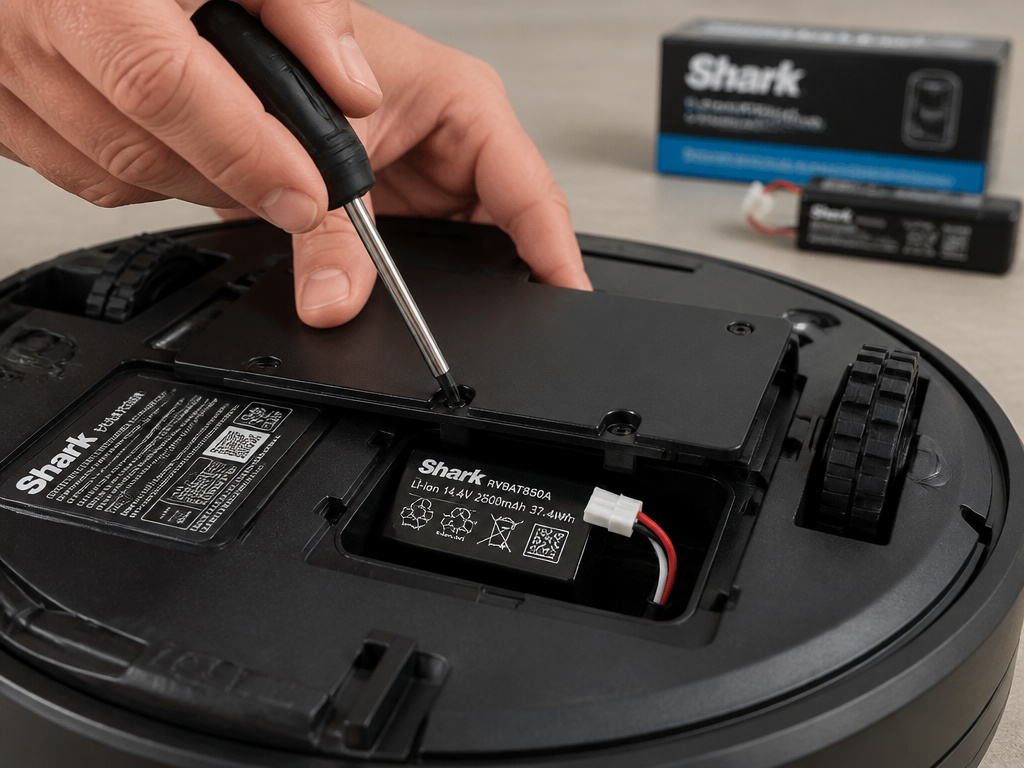
The Shark RVBAT850A (and its predecessor RVBAT850) is a 14.4V lithium-ion pack. Its chemistry dictates a finite life of roughly 300 to 500 full charge cycles. If you run the robot daily, that translates to 12–18 months of peak runtime before capacity begins to drop.
You’ll notice the decline before a total failure. A robot that once ran for 60 minutes now dies in 20. Then 10. It might leave the dock and stop immediately. This is natural wear, not a sudden fault.
Where this goes sideways: Storing a robot with a dead battery for months. Shark’s manual says to recharge the battery at least once every three months during storage. A lithium-ion pack drained to zero for a long period can enter a protective sleep state and may not wake up, even after a day on the dock. The internet myth of a “48-hour trickle revive” is not from Shark; the company publishes no trickle recovery time at all.
Replacing the battery is a straightforward repair. You’ll need a Phillips screwdriver to remove the battery door, located on the underside or rear of the robot. Unplug the white connector, lift the old pack out, and insert the new one. The entire swap takes under ten minutes. Use only a Shark RVBAT850A replacement battery or a certified equivalent—third-party packs often lack the proper management circuitry and can cause charging problems or even damage the robot.
When to Reset, Re-pair, and Update
Sometimes the issue is software, not hardware. A glitch can tell the robot it’s charging when it’s not, or prevent it from seeing the dock.
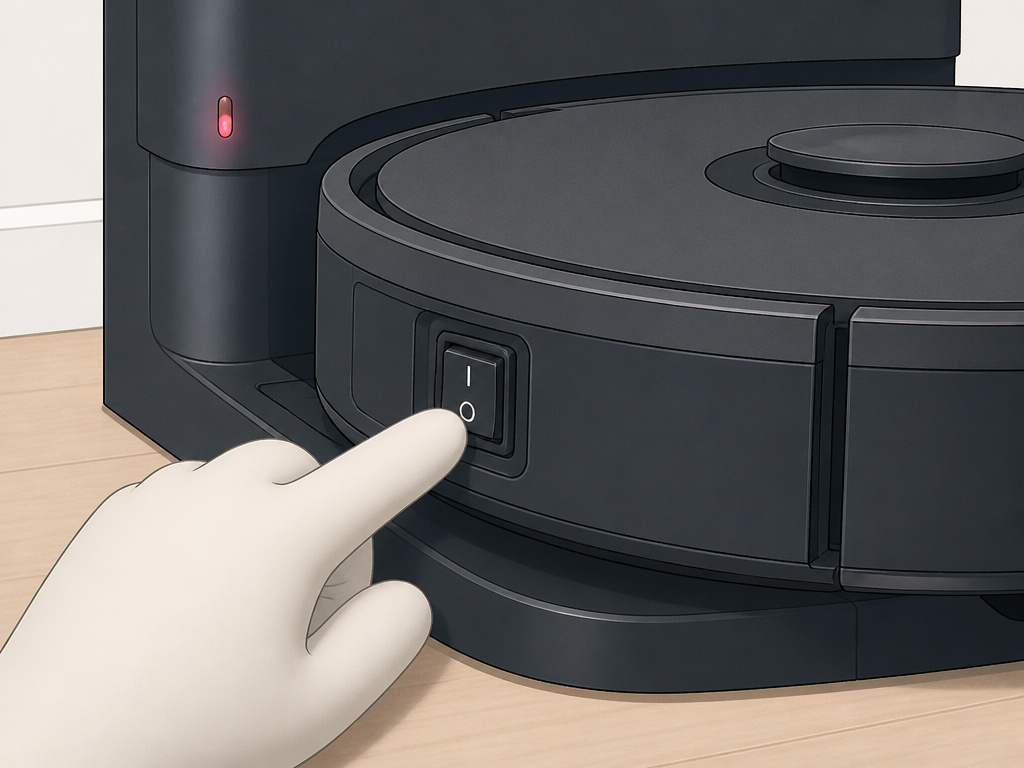
Start with a simple reset. Turn the robot’s power switch to “O” (off). Wait 30 seconds. Turn it back to “I” (on). Place it on the dock manually. This clears temporary memory errors.
For Wi-Fi models like the AI Ultra or IQ, a firmware update often resolves quirky behavior. Open the SharkClean app, navigate to your robot’s settings, and check for software updates. Keep the robot near your router during the process. An update can fix bugs that interfere with Wi-Fi issues and charging handshakes.
Ignore any online guide that tells you to hold button combinations for 10 or 20 seconds to perform a “factory reset.” Shark publishes no factory reset button procedure for its robot vacuums. Every combination you find traces back to third-party blogs copying each other. If a basic power cycle doesn’t work, your next step is the model-specific support site, not a secret button press.
Troubleshooting by Symptom
Use this table to match what you see with the most likely cause and the fix to try first.
| Symptom | Most Likely Cause | First Action |
|---|---|---|
| Dock green light is OFF. | No power to dock. | Try a different outlet. Check for a tripped GFCI. Feel power adapter for warmth. |
| Dock green light ON, robot dark. | Dirty contacts or misalignment. | Unplug dock. Clean contacts on robot and dock with dry cloth. Reseat and wait 60 seconds. |
| Robot dies minutes after leaving dock. | Worn battery. | Check robot age. If over 2 years with daily use, plan for a Shark robot vacuum not working due to battery replacement. |
| Robot returns but doesn’t seat correctly. | Insufficient dock clearance. | Measure clearance. Ensure dock is against wall on a non-slip surface. |
| App shows Error Code 8, 11, 24, or 37. | Specific hardware fault. | Note code. Code 8 means reseat battery connector. Code 11 or 37 points to dock or internal wiring. |
If your robot shows signs of overheating in addition to not charging, stop. Let it cool completely to room temperature. Lithium-ion batteries cannot charge outside their safe range of 50°F to 104°F (10°C to 40°C). A dock in a cold garage or a hot sunroom will prevent charging entirely.
The Professional Repair Path
You’ve cleaned the contacts, verified the outlet, ensured proper clearance, and the battery is relatively new. The robot still won’t charge. It’s time for professional intervention.
First, gather your information: the robot’s model number (like RV2502AE), the dock’s model number (like XDCKRV2000), and your purchase date. This is what Shark support will ask for.
If the robot is under its one-year warranty (longer for AI Ultra and Matrix lines), contact Shark customer service. Describe the steps you’ve already taken. For error codes, cite them directly. Shark will often ship a replacement dock, battery, or entire unit at no cost if the part is defective.
For out-of-warranty robots, the decision is cost. A replacement RVBAT850A battery is a standard repair. A failed charging circuit inside the robot or a dead dock is more involved. Weigh the repair quote against the price of a newer model, especially if you need better handling pet hair.
Frequently Asked Questions
Why does my Shark robot vacuum blink red and not charge?
Blinking red light, often labelled “Replace Battery” on ION models, indicates a critically low battery. It does not mean the battery is dead. Manually place the robot on the dock, ensure clean contacts, and wait. The light should turn off once charging initiates. If it continues to blink after an hour on the dock, the battery may be depleted beyond recovery or have failed.
How long should I leave my Shark robot on the charger?
Full charge takes between 3 and 6 hours, depending on the model. The older RV755 charges in about 3 hours; IQ, AI Ultra, and PowerDetect models can take up to 6. Leave it on the dock until the indicator lights show a solid “full” signal (steady blue or green). It is safe to leave the robot on the dock indefinitely between cleaning cycles.
Can a dirty filter cause charging problems?
Not directly. However, a severely clogged filter forces the motor to work harder, draining the battery faster. This can create the illusion of a charging problem because the robot dies quickly after leaving the dock. Always maintain your filters to ensure normal loss of suction and battery runtime aren’t confused for charging faults.
What does it mean if the dock light is blue?
On many models (like the Matrix series), a blue light on the dock illuminates when the robot is correctly seated and charging has begun. This is a positive signal. Refer to your model’s specific light chart—a blue light usually replaces a steady green “power on” light once the connection is made.
My robot charges but won’t start cleaning. Is this related?
Possibly. If the battery is old and can’t deliver enough peak current, the robot might have enough charge to light up but not enough to engage the motor and brushes. This links charging health to other brush roll issues. Test by starting a cleaning job right after a full charge. If it beeps and stops, suspect the battery.
The Bottom Line
Most charging failures are simple. Check the dock’s green light. Wipe the metal contacts. Give the robot a full minute on the base. These three actions solve the majority of cases.
For persistent problems, let the lights and error codes guide you. Match your model’s indicator pattern, and don’t ignore the codes in the SharkClean app—they are Shark’s own diagnostics. Remember the clearance rules: three feet for older models, one foot for new ones.
If the robot is over two years old and runtime has collapsed, the RVBAT850A battery is the expected wear item. Replacing it is a ten-minute fix. For everything else—failed docks, internal wiring faults, persistent error codes—your model number and purchase date are your tickets to Shark support. Start with the simplest check and move forward one step at a time.