
What Your Roomba Vacuum Lights Mean – Status Code Guide
This post contains affiliate links. As an Amazon Associate, we earn from qualifying purchases.
Roomba vacuum lights communicate status through a color-coded system. White typically means normal operation or a full charge, blue indicates a special action like Dirt Detect, and red signals an error or low battery. Green is used for remote check-ins. The exact pattern, solid, pulsing, or sweeping, specifies the robot’s precise state, from charging to a full dust bin.
That color system is your primary interface. Your Roomba talks through its lights because it can’t speak. Missing a red pulse means you might try to start a cleaning job on a dead battery. Misreading a white swirl could interrupt a critical software update.
What follows is a breakdown of the universal color language, then the model-specific quirks that trip people up. We’ll cover the lights on the robot itself, the signals from its dock, and the one setting in the iRobot app that can turn the whole light show off.
Key Takeaways
- Red always means stop. A solid red light is an error; a pulsing red light means the battery is too low to start a job. Leave it on the dock.
- White is normal. A solid white light ring means fully charged. A white swirl means starting up or updating. A periodic white sweep means it’s actively cleaning.
- The dock has its own language. Most Home Base lights turn on for 4 seconds when the robot docks, then turn off while charging. Some newer docks keep the light on for 60 seconds; the Roomba Essentials 1 dock has no light at all.
- Not all lights can be controlled. Only i6/i7/i8, s9, m6, and most j-series models let you disable the status lights in the iRobot app. Older 600-900 series and i1-i5 models do not.
- Charge timing is specific. A normal charge takes at least 2 hours. After long storage, the robot may initiate a 16-hour “refresh” charge to condition the battery.
The Core Light Ring Color Code (i, e, s, m, j Series)
Modern Roombas use a full circular light ring. The color tells you the category of activity; the animation gives you the specifics.
A solid white light ring means the robot is fully charged and awake. A white clockwise swirl means the robot is starting up or installing a software update, do not unplug it. A periodic white sweep around the ring means a cleaning job is in progress.
The table below translates the most common signals you’ll see.
| Light Color & Pattern | What It Means | What You Should Do |
|---|---|---|
| Solid White | Fully charged, ready. | Nothing. It’s good to go. |
| Pulsing White (bottom half) | Charged and hibernating on dock. | Nothing. This is normal standby. |
| White Clockwise Swirl | Booting up or updating software. | Leave it alone until it stops. |
| Periodic White Sweep | Actively cleaning. | Let it finish its job. |
| Flashing Blue | Dirt Detect™ is activated. | It found a dirty spot and is cleaning it thoroughly. |
| Solid Red | Error detected. | Press the Clean button once to see if it clears. Check the app for details. |
| Pulsing Red | Battery very low, charging. | Leave it on the charger for at least 3 hours. |
| Red Sweep Toward Rear | Dust bin is full (Roomba). Water tank is empty (Braava m6). | Empty the bin or refill the tank. |
| Solid Green | Remote check-in mission in progress. | Used with smart maps; the robot is reporting its location. |
Blue is for special functions. You’ll see flashing blue when the Dirt Detect sensors trigger over a concentrated area of debris. The robot will spiral over that spot to deep clean it. Solid blue is less common, reserved for other specific actions like beginning a mapping run.
Red is your alert system. A pulsing red light is straightforward: the battery is below the operational threshold. It’s charging, but it needs time. A solid red light indicates a problem the robot can’t resolve on its own. The first step is always to press the Clean button. This often clears transient errors. If the red light returns, the iRobot app will provide a specific error code like Error 11 or Error 6.
That red sweep toward the back is a clever bit of design. It literally points to where the problem is, the rear dust bin. It’s a non-verbal nudge to empty it before the robot loses suction.
Decoding Dock and Charging Lights
Your Roomba’s dock is more than a parking spot. Its lights confirm the connection and charging status. The behavior isn’t uniform across all models, which is a frequent source of confusion.
For most Home Base docks on i, e, and s-series models, the light follows a simple rule. When the robot connects successfully, the dock light turns on for about 4 seconds, then turns off while charging continues. This is normal. The light isn’t supposed to stay on.
Newer models change this. The Roomba Combo 10 Max and Roomba Essentials 2 docks keep their light illuminated for a full 60 seconds after docking before shutting off. The Roomba Essentials 1 dock breaks the pattern entirely, it has no status light.
If the dock light doesn’t flash at all when you seat the robot, you have a connection problem. The contacts are likely dirty.
Common mistake: Thinking a dark dock means it’s not working. On most models, the light is only on for 4 seconds. If you missed that brief window, the dock will appear off while charging normally.
Clean the metal charging contacts on both the robot and the dock with a dry melamine foam pad (like a Magic Eraser). Grime and oxide buildup are the most common cause of charging failures. If cleaning doesn’t make the dock light flash on contact, the dock itself may need replacement.
Charging Timelines and Battery Signals
Roombas use Nickel Metal Hydride (NiMH) or lithium-ion batteries. The charging logic protects battery health.
A normal recharge from a low battery takes at least 2 hours. If the robot has been off the dock for a very long time or is brand new, it may initiate a 16-hour refresh charge. This extended cycle recalibrates the battery management system and helps maximize long-term battery life. Don’t interrupt it.
The robot’s own lights will tell you the battery state during this process. On an older 500 or 600 series Roomba, a dedicated charging indicator light uses a different code: red for empty, amber pulse for charging, and solid green for full.
For modern robots with the light ring, a pulsing red means it’s charging because the battery was too low to start. Once it reaches a sufficient charge, the light may change to a pulsing white (on dock) or go out, depending on the model.
Model-Specific Quirks and App Control
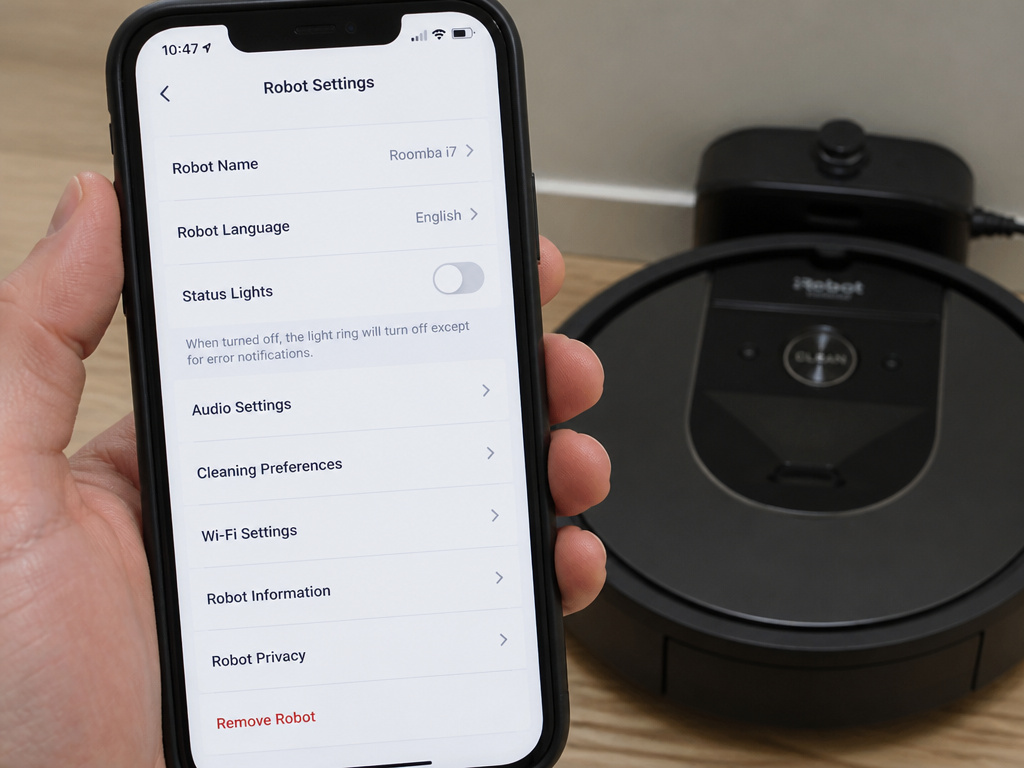
Not all Roombas treat their lights the same way. Two key differences trip up owners: which lights stay on while docked, and which models let you turn the lights off in the app.
First, dock behavior varies by series. For i-Series robots, the i3 and i3+ models keep their light ring indicators on while recharging. The i7 and i7+ models do not, their light ring turns off once charging begins. This isn’t a malfunction; it’s a design choice.
Second, app control is a privilege of newer hardware. You can only disable the status lights via the iRobot app for specific models.
| Can Disable Lights in App? | Roomba Models |
|---|---|
| No | 600, 700, 800, 900 series; i1, i2, i3, i4, i5; e Series; Combo j9 with AutoEmpty Dock. |
| Yes | i6, i7, i8; s9; m6; j series (except Combo j9 with AutoEmpty Dock). |
If you have an older robot and find the lights bright at night, you can’t software-disable them. Your only option is to physically cover the light ring.
For compatible models, the setting is in the Robot Settings menu under “Status Lights.” Toggle it off. Remember, with lights off, you lose the immediate visual cue for errors or a full bin. You become entirely reliant on app notifications.
The 1000 Series & AutoEmpty Dock Lights
The Roomba 1000 series (like the Combo j9) and their AutoEmpty docks use a simplified light system on the robot’s button.
- Solid White: Fully charged and connected to the dock.
- Flashing White: Robot is trying to return to dock to charge.
- Pulsing White: Actively charging (low battery) or receiving a software update.
- Flashing Red: Low battery or an error. If you try to start a job while the light is pulsing white (charging), the buttons will flash red and an audio message will play.
These models prioritize the dock’s own light show and app communication over the robot’s built-in indicators.
Troubleshooting Specific Light Signals
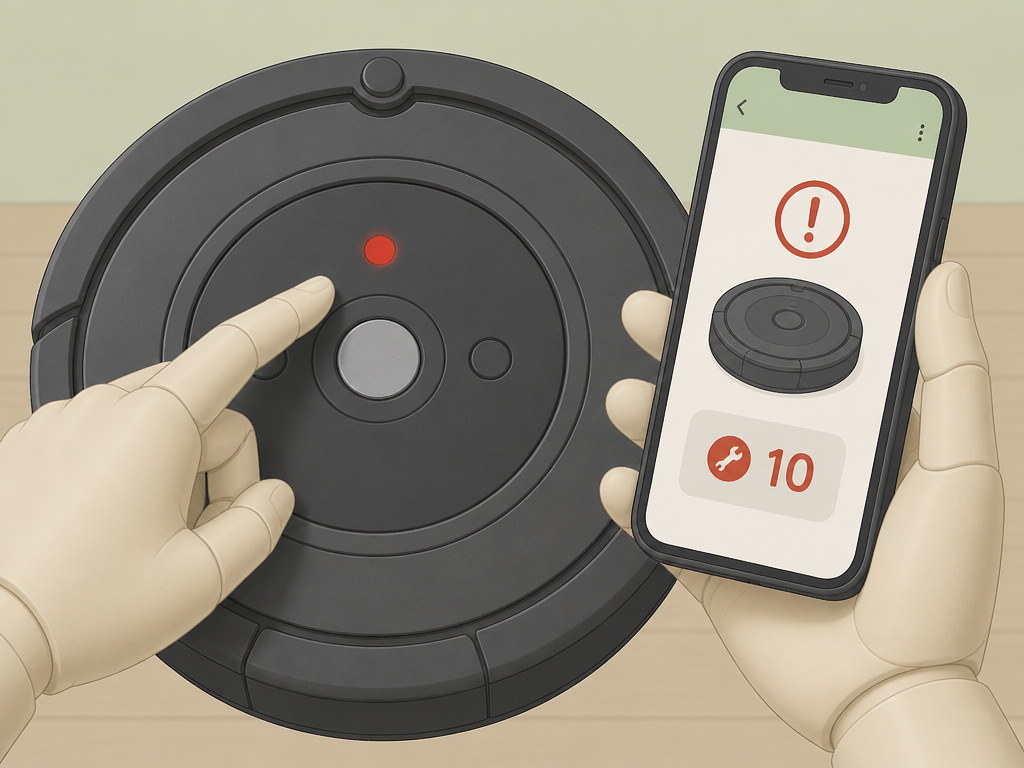
When lights don’t behave as expected, the problem is usually one of three things: power, connections, or software.
No Lights At All
If the robot is completely dead with no light response, check the basics. Is the Home Base plugged in? Is the outlet working? For robots with a removable battery, ensure it’s fully seated. If the robot was stored until fully exhausted, place it on the dock and wait. A deeply discharged battery can take up to a minute to show any sign of life, you might see a swirl followed by a tone.
Solid Red Light That Won’t Clear
A persistent solid red light indicates a hardware error. Pressing Clean once is the first reset. If it remains, the app is your best tool. It will convert that red light into a specific numeric code.
For example, a solid red light accompanied by an Error 15 or Error 26 points to a cliff sensor problem. You’ll need to wipe the sensors clean underneath the bumper. A solid red with Error 43 is a charging system fault, pointing you back to those charging contacts or the dock itself.
Dock Light Never Illuminates
As covered, some docks have no light. For those that should, if the light never turns on when the robot is placed, the dock isn’t recognizing it. Clean the contacts thoroughly on both sides. If it still fails, the dock’s internal electronics may be faulty. This is a known failure mode mentioned in iRobot’s support guides.
Lights Work, But Robot Won’t Clean
This is a different category of problem. If the lights show a full charge (solid white) but the robot won’t start a job or seems to have suction problems, the issue is mechanical, not electrical. Check for blockages in the brushes, debris in the airpath, or a full filter. A robot that’s going in circles has a navigation or wheel issue, which will often, but not always, trigger a red error light first.
Where this goes sideways: Ignoring a pulsing red light and repeatedly pressing “Clean.” This forces the robot to try to boot from a dead battery, which can further stress the battery management system and lead to a deeper discharge. See the red pulse, walk away for three hours.
Frequently Asked Questions
Why is my Roomba light ring always on?
Some models, like the i3 and i3+, are designed to keep the light ring illuminated while docked and charging. For models that usually turn the lights off (like the i7), a constantly on light ring can indicate it’s not properly seated on the charging contacts. Clean the contacts and reseat the robot.
Can I turn off the bright Roomba lights at night?
Yes, but only if you have an i6, i7, i8, s9, m6, or standard j-series model. Open the iRobot app, go to Robot Settings, and find the “Status Lights” toggle. For older models, you can gently place a piece of black electrical tape over the light ring.
What does a flashing blue light mean on my Roomba?
Flashing blue light means Dirt Detect is active. The robot’s acoustic and optical sensors have identified a particularly dirty spot, and it’s performing an intensive clean spiral in that area. It’s a feature, not an error.
My Roomba dock light turns off after a few seconds. Is it broken?
No, this is standard behavior for most Home Base docks. The light turns on for approximately 4 seconds to confirm the robot is docked, then turns off while charging continues silently. Only a few newer dock models keep the light on longer.
What does a red light sweeping to the back mean?
This is a “bin full” indicator. The red light sweeps toward the rear of the robot, physically pointing you to the dust bin that needs emptying. On the Braava jet m6 mopping robot, the same signal means the water tank is empty.
Before You Go
Your Roomba’s lights are a direct diagnostic feed. White means go, blue means it’s working hard, and red means you need to intervene. Remember the critical distinction: a pulsing red needs patience and a charger; a solid red needs you to press Clean and check the app.
The dock’s brief light flash is usually a sign of success, not failure. And if you want darkness at night, check if your model is on the short list that allows app control, otherwise, keep some tape handy. Decoding these signals turns a cryptic flash into a simple instruction, keeping your robot running and your floors clean.